International payroll
Payroll for companies in Austria, Switzerland, Denmark, Spain, France, Norway and Sweden.
If your company is not in Germany, People, Payroll uses the payroll of your country pack. The sidebar shows Payroll runs and Employees. If your country has no payroll calculation, the page says "No payroll is available for your country."
Covered countries and their files: Austria: social security, wage tax, special payments, employer contributions and municipal tax, the monthly contribution report (mBGM) and the wage slip L16 for ELDA, and a worksheet of the wage levies. Switzerland: wage statement (form 11), Swissdec ELM XML (not certified), the annual AHV wage report and the withholding tax list. Denmark: AM contribution, A tax from the tax card, ATP, holiday pay and the eIndkomst file. Spain: social security, IRPF withholding, the Sistema RED worksheets (RNT and RLC), the Modelo 111 worksheet and the Modelo 190 file. France: social contributions, CSG and CRDS, withholding tax and the monthly DSN. Norway: tax deduction, employer contribution and the a melding XML. Sweden: tax tables, employer contributions and the AGI file.
Who can use this
- Owner
- Admin
- HR manager
- Accountant (read, approve, post)
Steps
1. Complete the payroll master data
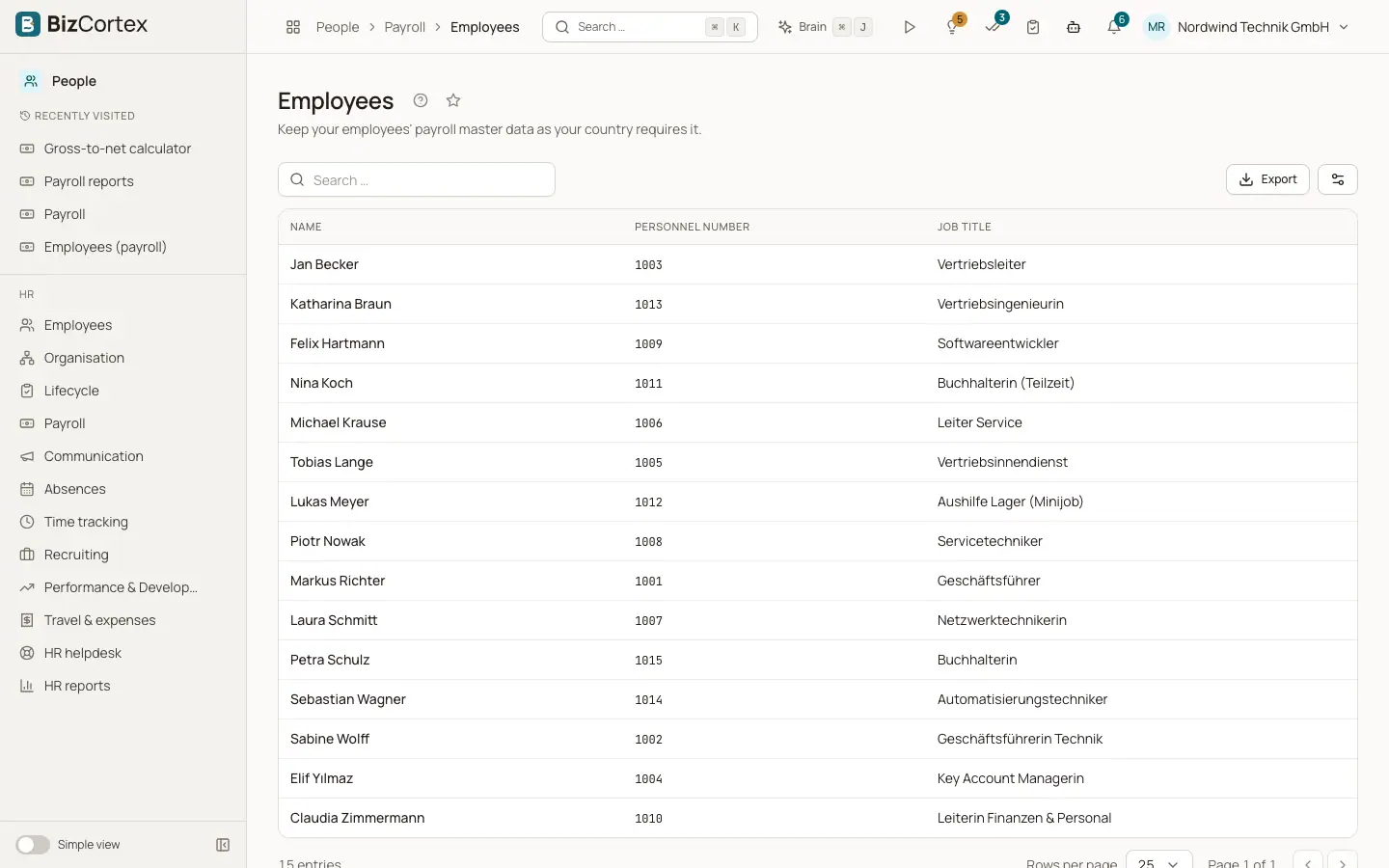
Open Employees and click a person. The form "Payroll master data" shows exactly the fields your country needs. If none are needed, it says so.
2. Create a run
Open Payroll runs and click "New payroll run". Choose year and month. There is one regular run per month. Off cycle runs for bonuses or exit pay are possible in addition.
3. Enter variable pay
In the Inputs tab add bonuses, overtime, allowances, benefits in kind and advances per employee: choose the item, the amount and, where asked, hours, days or kilometres. Click "Save inputs". Or click "Import CSV" with one line per input: personnel number; code; amount; quantity.
4. Calculate and approve
Click Calculate. Check the payslips in "Payslips & files", with each line, base, rate and amount, and the PDF. Click Approve. Once approved, the run can no longer be recalculated; Reopen sends it back to draft.
5. Post
Click Post. The payroll entry is written to the ledger. "Open the payroll entry" shows it.
6. File
The filing files appear under the run after the calculation. Download them, upload them in the portal of the authority and record the outcome under Submissions.
7. Correct
For a posted run click "Create correction run". Posting it books only the difference, and its filing files are marked as corrections.
Fields and options
- Status
Draft, Calculated, Approved or Posted.
- Type
Regular run, Correction or Off cycle run.
Good to know
- A yellow "Review required" banner means the calculation for your country has not been signed off by a local payroll expert yet. Check every payslip before you pay or file it.
- BizCortex does not transmit the files directly to the authorities. You upload them yourself.
- There is no SEPA payment file and no payment posting in the international payroll yet.
- The CSV import is limited to about 2 MB.
Related
- German payroll: overview
What the German payroll calculates, what it produces and what you still do by hand.
- How country packs work
The country of a company is chosen once and decides its accounts, taxes, files, payroll and deadlines.