Requisitions and job openings
Approve new positions, create job openings and publish them on your careers page.
Recruiting starts with an optional requisition: a request to fill a new or vacant position, which must be approved. An approved requisition becomes a job opening. A job opening has its own candidate pipeline and can be published on your public careers page.
Who can use this
- Owner
- Admin
- HR manager
Steps
1. Create a requisition
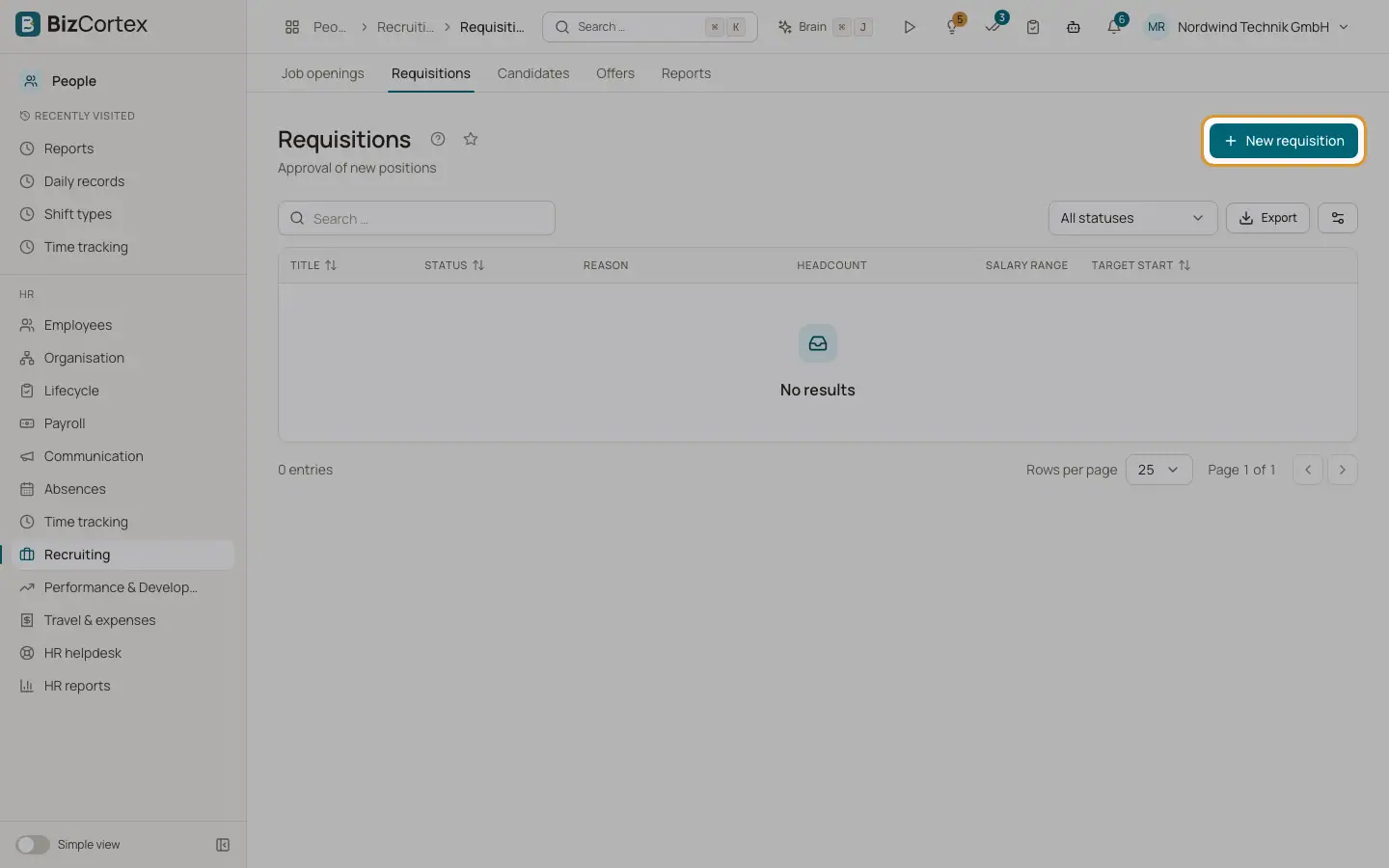
Open People, Recruiting, Requisitions and click "New requisition". Enter title, department, position, location, headcount, reason (New position or Replacement), salary range, justification and target start. Click Submit.
2. Approve the requisition
The approver clicks Approve or Reject with a decision note. Then click "Create job opening" to turn the approved requisition into an opening.
3. Create a job opening directly
Open Job openings and click "New job opening". Enter title, department, location, description, requirements, what we offer, work location (On site, Hybrid, Remote), employment type, contract type, weekly hours, salary range, "Publish salary (pay transparency)", closing date, hiring manager and the scorecard criteria (one per line).
4. Publish
Click Publish. The opening appears on the careers page. Use "Copy link" to copy the public link. Use Unpublish, "Put on hold", Close and Reopen to control the status.
Fields and options
- Requisition status
Draft, Submitted, Approved or Rejected.
- Opening status
Draft, Open, On hold, Closed or Filled.
Good to know
- Only draft or rejected requisitions can be edited. Approved requisitions cannot be deleted.
- Closed or filled openings cannot be published. An opening with applications cannot be deleted; close it instead.
- The maximum salary must not be lower than the minimum.
Related
- Pipeline, applications and interviews
Move applications through the stages, schedule interviews and collect scorecards.
- The public careers page
How applicants find your published jobs and apply online without an account.