Clocking in and out (My working time)
How employees record their working time and breaks.
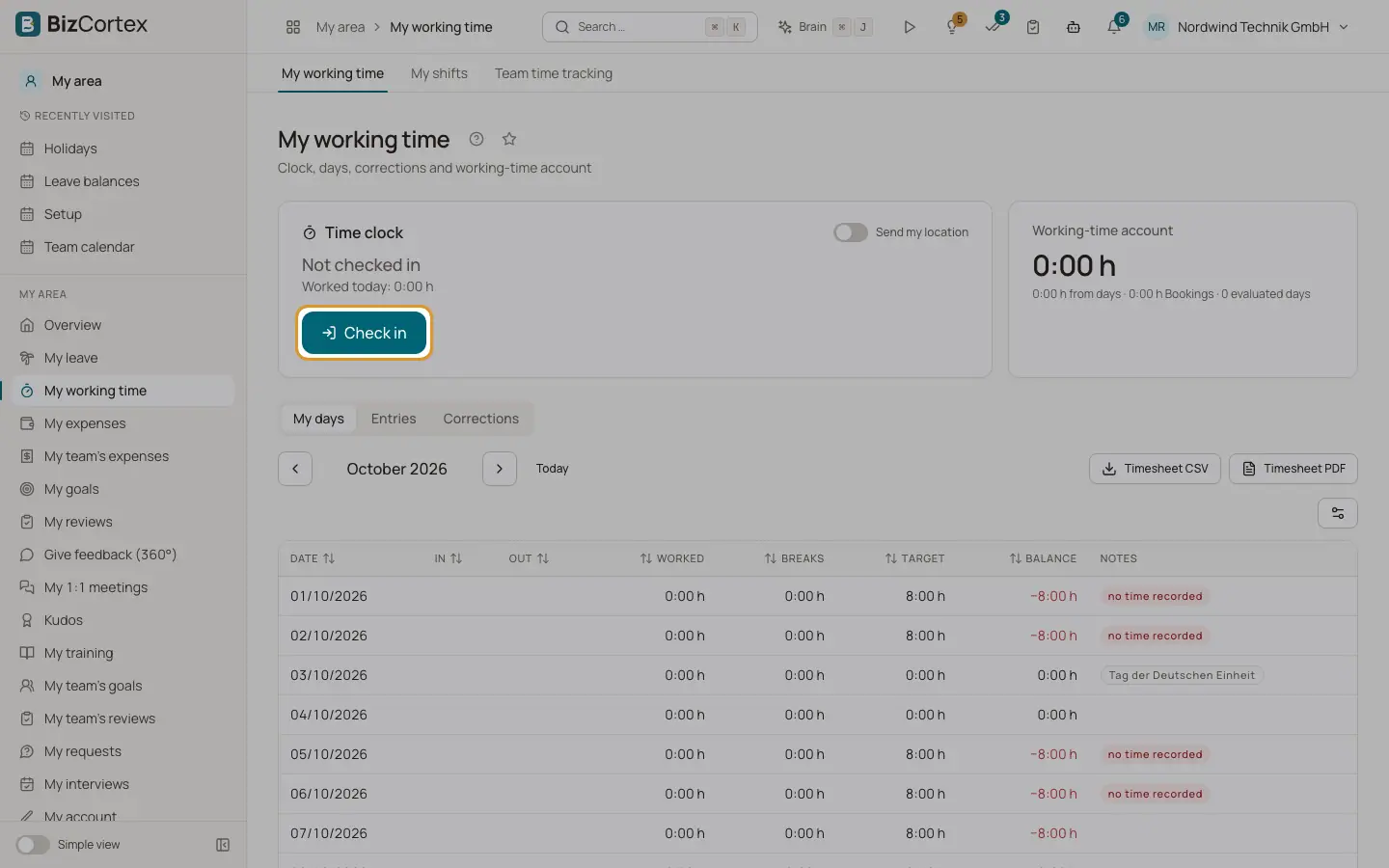
In My area, My working time each employee has a time clock. It shows whether you are checked in, on a break or not checked in, and how long you worked today. The page also has the tabs My days, Entries, Corrections, Working time account and Timesheet.
Who can use this
- Every employee with a linked personnel record
Steps
1. Check in
Click "Check in" when you start working. Optionally turn on "Send my location". Your location is only stored with this clock event.
2. Take a break
Click "Start break" and later "End break".
3. Check out
Click "Check out" at the end of the day.
4. Request a correction
If you forgot to clock, open Corrections and click "Request correction". Enter all work and break times of the day completely. Your manager or HR approves the correction.
5. Download your timesheet
In the Timesheet tab choose the month and download CSV or PDF.
Good to know
- You can only clock while your employment is active.
- The IP address of the device is stored with each clock event.
- Future days cannot be corrected, and only one correction per day can be pending.
Related
- Time entries and corrections
Review all recorded times and approve after the fact changes.
- Daily records and working time account
Daily evaluation of working time with Working Hours Act checks, and overtime balances.