Personnel actions: promotions, transfers, exits and rehires
Record effective dated changes to a personnel record and keep a clean history.
A personnel action changes the record from a given date, for example a promotion, a transfer to another department or a contract change. Future actions are planned and take effect automatically on their date. People, Lifecycle, Personnel actions lists all actions of the company.
Who can use this
- Owner
- Admin
- HR manager
Steps
1. Record a promotion or transfer
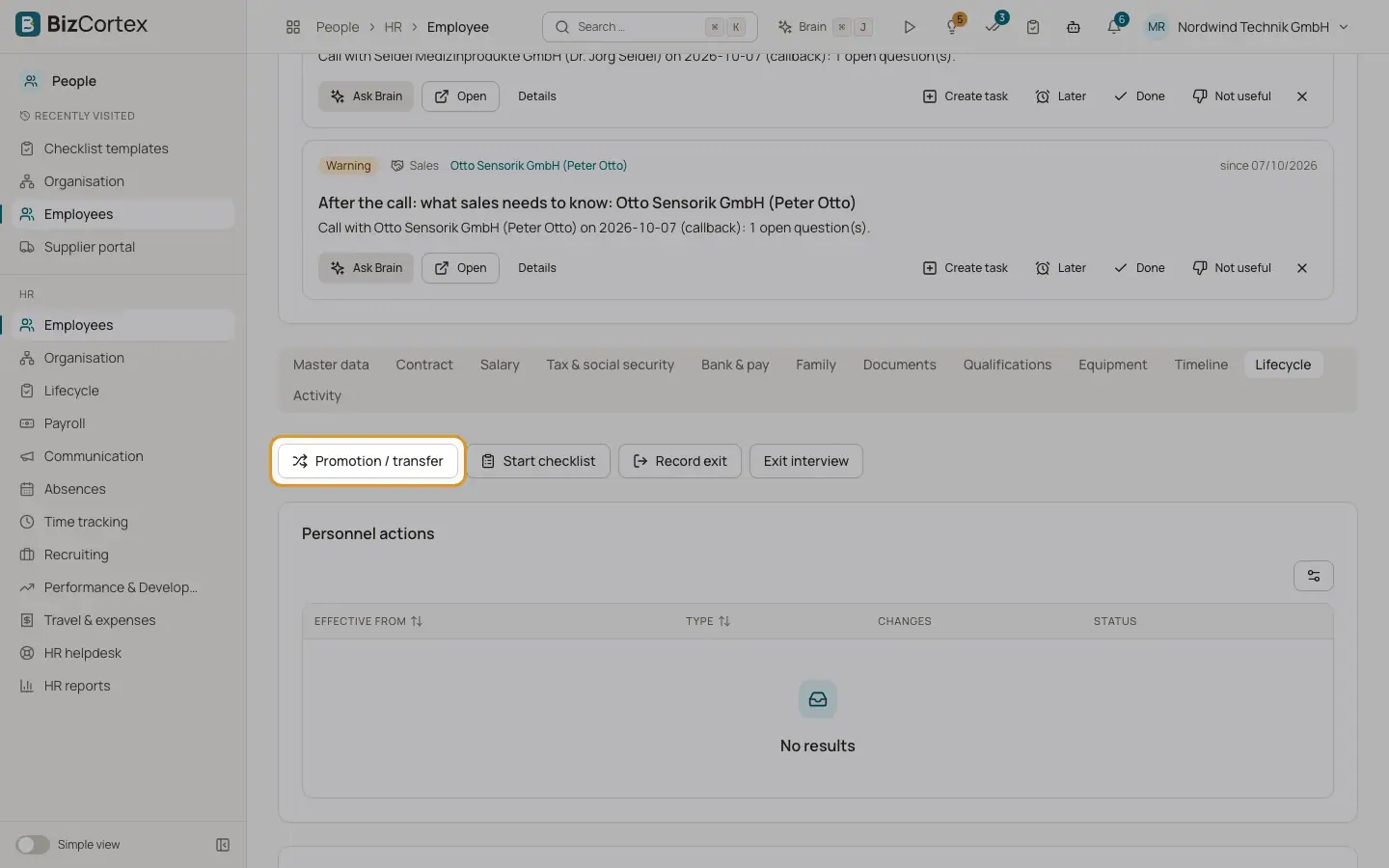
In the employee record open the Lifecycle tab and click "Promotion / transfer". Enter "Effective from", the changes (job title, department, position, pay grade, location, manager, weekly hours, pay type) and optionally a new salary, plus a reason.
2. Record an exit
Click "Record exit". Enter the exit date, the type of exit, the reason, the date the notice was received and whether the person is eligible for rehire. Optionally tick "Start offboarding" to create the offboarding checklist at the same time.
3. Rehire
For a former employee click Rehire after the exit date. Enter the new hire date and any changes. Rehire is blocked if the person is flagged as not eligible for rehire.
4. Apply due changes
In the Personnel actions list click "Apply due changes" to apply all actions whose date has come. A nightly job does the same automatically. Use "Planned only" to see actions that are not effective yet.
Fields and options
- Type of exit
Resignation, Dismissal, Mutual termination agreement, End of fixed term, Retirement, Death or Other.
- Status
effective or planned.
Good to know
- An action needs at least one change or a new salary.
- Applied actions cannot be deleted. Record a new action to correct them.
- The exit date must not be before the hire date.
Related
- Exit interviews
Record why people leave and learn from it.
- Onboarding and offboarding checklists
Make sure no task is forgotten when someone joins or leaves.
- Salary history
Record salary changes with an effective date, including future raises.