The employee record and its tabs
All tabs of a personnel record and what you can do in each of them.
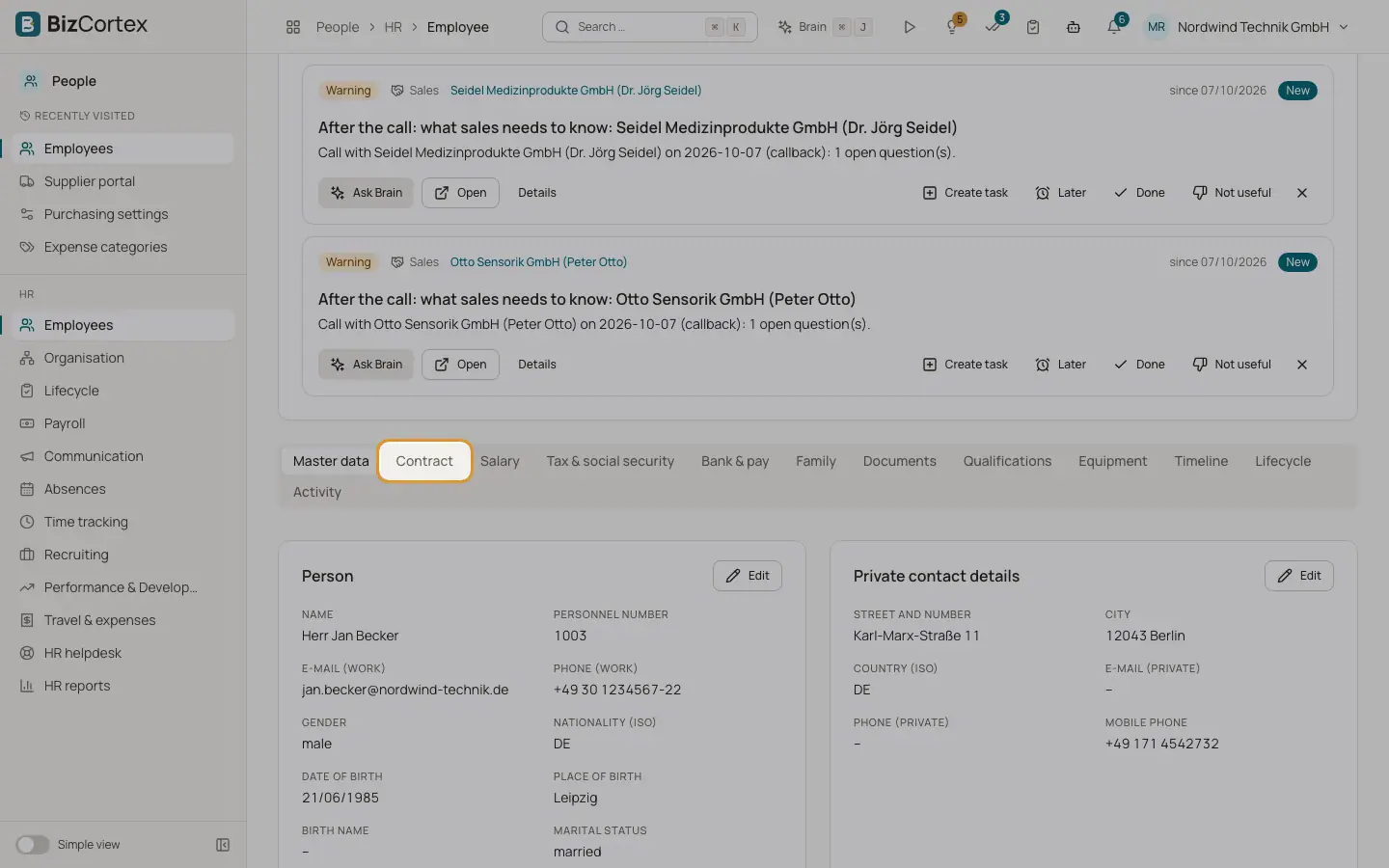
Open an employee from the list to see the personnel record. The header shows the name, personnel number, job title and the status badge Active or Left. The buttons Payroll (opens the payroll data of the person, only with payroll access) and Delete are in the header as well. Advisor insights about the employee may appear below the header.
Sensitive tabs (Salary, Tax and social security, Bank and pay, Family, Activity) are only visible to users who may see sensitive data. Each section has an Edit button that opens a dialog for that section.
Who can use this
- Owner
- Admin
- HR manager
- Accountant (read only, without sensitive tabs)
Steps
1. Master data
Person and private contact details, plus the linked user account.
2. Contract
Organisation (company, branch, location, department, position, pay grade, cost center, manager) and the employment contract (job title, employee group, employment type, hire date, probation, contract type, weekly hours, working days, vacation days, notice period, exit date, type of exit, reason for exit, eligible for rehire).
3. Salary
Salary history with a chart of the salary development. See the page Salary history.
4. Tax and social security
Wage tax, social security, company pension (bAV) and severe disability.
5. Bank and pay
Pay type, annual gross salary, monthly gross (one twelfth), hourly rate and the bank account.
6. Family
Children and dependants and emergency contacts. For a child you can set the child allowance share and whether the child counts for care insurance. "Take child allowances from children" adds up the shares of children under 25 and writes them into the child allowances field.
7. Documents
The personnel file. See the page Personnel documents.
8. Qualifications
Skills with level (Basic to Expert) and years of experience, languages (with a Native flag), education and previous employers.
9. Equipment
Issued equipment with item, serial number, issued on, returned on and condition on return. Items without a return date are shown as not returned.
10. Timeline
Chronological history: hire, rehire, promotions, transfers, contract and salary changes, onboarding, offboarding and exit.
11. Lifecycle
Personnel actions, checklists, exit interviews and the document generators. See the lifecycle pages.
12. Activity
Audit trail of all changes to the record, with comments and attachments.
Fields and options
- Religion (church tax)
Denomination for church tax, or no church tax.
- Health insurance
statutory or private. For private insurance enter the monthly health and care premiums.
- Marginal employment
none, Mini job, Midi job (transition zone) or short term employment.
- Pension vehicle
Direct insurance, Pensionskasse, Pension fund, Support fund or Direct commitment, with provider, contract number and monthly employee and employer contributions.
Tips
- Changing the salary, pay type or hourly rate in the record automatically adds an entry to the salary history.
Good to know
- Delete removes the record permanently. If payslips exist for the person, deletion is blocked. Record an exit date instead.
- BizCortex can anonymise former employees after the retention period, but there is no button for this in the employee record yet.
Related
- Personnel documents
Keep the personnel file, decide what the employee may see and generate letters from templates.
- Salary history
Record salary changes with an effective date, including future raises.
- Personnel actions: promotions, transfers, exits and rehires
Record effective dated changes to a personnel record and keep a clean history.
- Change requests from employees
Review the changes employees request to their own master data.