Time entries and corrections
Review all recorded times and approve after the fact changes.
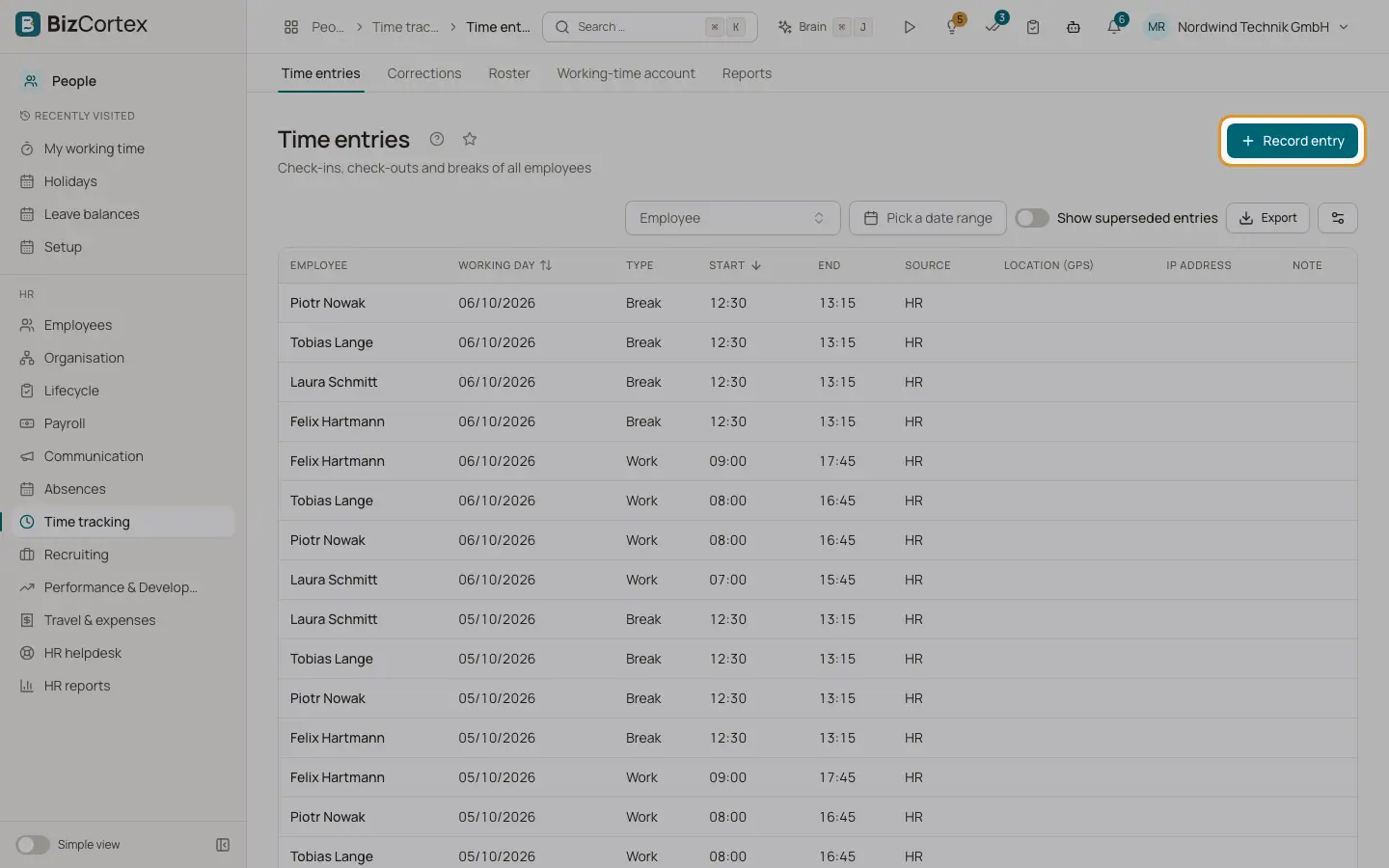
People, Time tracking, Time entries lists all work and break entries with start, end, source (Time clock, HR or Correction), note, location and IP address. Entries are never deleted. A correction marks old entries as superseded and adds new ones, so the full history stays visible.
Who can use this
- Owner
- Admin
- HR manager
- Managers for their direct reports (My area, Team time tracking)
Steps
1. Record an entry
Click "Record entry" to add a work or break entry for an employee. A break must lie within a work entry.
2. Show superseded entries
Turn on "Show superseded entries" to see entries that were replaced by a correction.
3. Review corrections
Open Corrections. Each request shows the corrected times of the day. Click Approve or Reject and optionally add a note. The employee is notified.
4. Record a correction as HR
Click "Record correction" to correct a day directly. Enter all intervals of the day; an interval can end on the next day (+1 day).
Fields and options
- Status
Pending, Approved, Rejected or Cancelled (withdrawn by the employee).
Good to know
- You cannot decide on your own correction.
- Work entries of a day must not overlap.
Related
- Clocking in and out (My working time)
How employees record their working time and breaks.