Travel and expense claims
How employees claim expenses and how claims are approved, posted and paid.
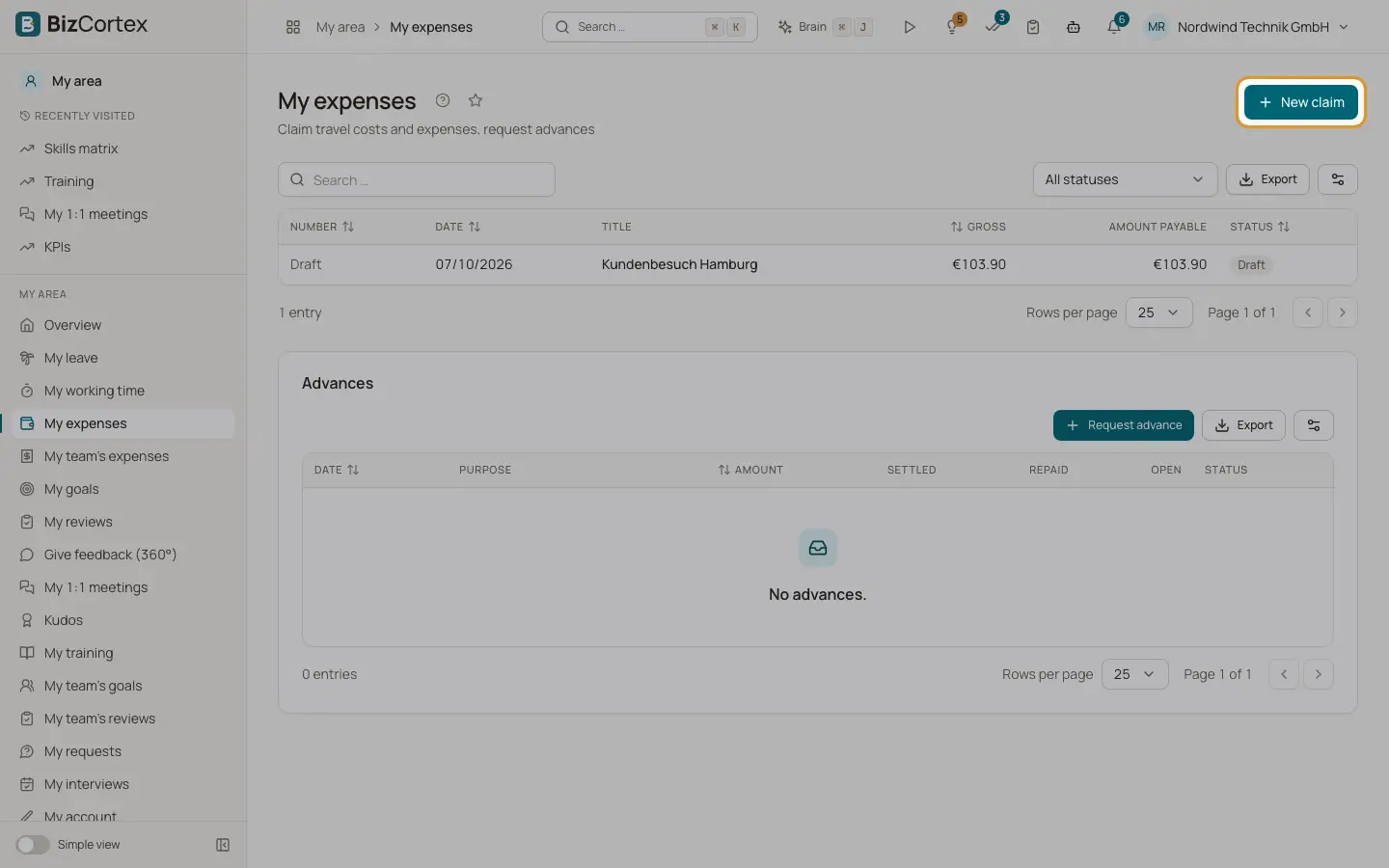
Employees claim travel costs and expenses in My area, My expenses. HR and finance work with all claims in People, Travel & expenses, Expense claims. A claim has a title, a purpose and lines. It gets a number such as AE, year and a five digit counter on the first submit.
A claim moves through these statuses: Draft, Submitted, Approved by manager, Approved, Posted and Paid, or Rejected. Two different people must approve: first the manager, then finance. Nobody can approve or reject their own claim.
Who can use this
- Every employee (My area, My expenses)
- Managers (My area, My team's expenses)
- HR manager (manager step, claims for employees)
- Accountant (finance step, posting, payout)
- Owner
- Admin
Steps
1. Create a claim
In My area, My expenses click "New claim". Enter a title (for example customer meeting Berlin) and a purpose. HR can click "Claim for an employee" in Expense claims and choose the employee.
2. Add lines
Click "Add line", choose a category and enter a description. The category decides the kind of line: Receipt, Mileage allowance or Meal allowance (per diem). See the page Expense lines.
3. Upload receipts
Click the paperclip in a line ("Upload receipt") and choose a PDF or image. The Receipt column shows a download button or "Receipt missing".
4. Submit
Click Submit. The claim needs at least one line and every required receipt; otherwise the button is disabled and shows "Missing receipts". Your direct manager is notified.
5. Manager step
The manager opens My area, My team's expenses (filter starts at Submitted), clicks View to check the claim and then Approve or Reject. HR can do this step on the claim page with "Approve (manager step)".
6. Finance step
Finance clicks "Approve (finance)". This must be a different person from the manager step approver. If a finance approval threshold is set and the claim total is not above it, this step is skipped.
7. Post
If "Post automatically after approval" is on (default), the claim is posted at once. Otherwise finance clicks Post. The claim shows a link "View journal entry".
8. Pay
Pay the claim with the SEPA payout page or click "Record payout" on the claim. The claim becomes Paid.
9. Rejected claims
A rejection needs a reason. The reason is shown in red on the claim, the claim becomes editable again and the employee can submit it again.
Fields and options
- Net, VAT, Gross
Totals of all lines.
- Advance settled
Paid out advances that were offset against this claim when it was posted.
- Amount payable
Gross minus settled advances.
Tips
- If your administrator set up an approval workflow for expense claims, the claim is approved through the approval inbox instead of the built in buttons. A ready made template routes to the manager first and then to the accountants.
- Filter the HR list with "All statuses" and the employee picker.
Good to know
- Only drafts and rejected claims can be changed. Only drafts that were never submitted can be deleted.
- The title and purpose cannot be edited in the screen after the claim was created.
- Reimbursement through payroll is not available yet. Claims are paid by SEPA transfer or recorded as paid.
- All notifications are shown inside BizCortex. No emails are sent.
Related
- Expense lines: receipts, mileage and meal allowances
How each kind of expense line is entered and calculated.
- SEPA payout of reimbursements
Pay all posted reimbursements in one SEPA transfer file.
- Expense settings and categories
Accounts, allowance rates, approval threshold, SEPA debtor and expense categories.