Personnel documents
Keep the personnel file, decide what the employee may see and generate letters from templates.
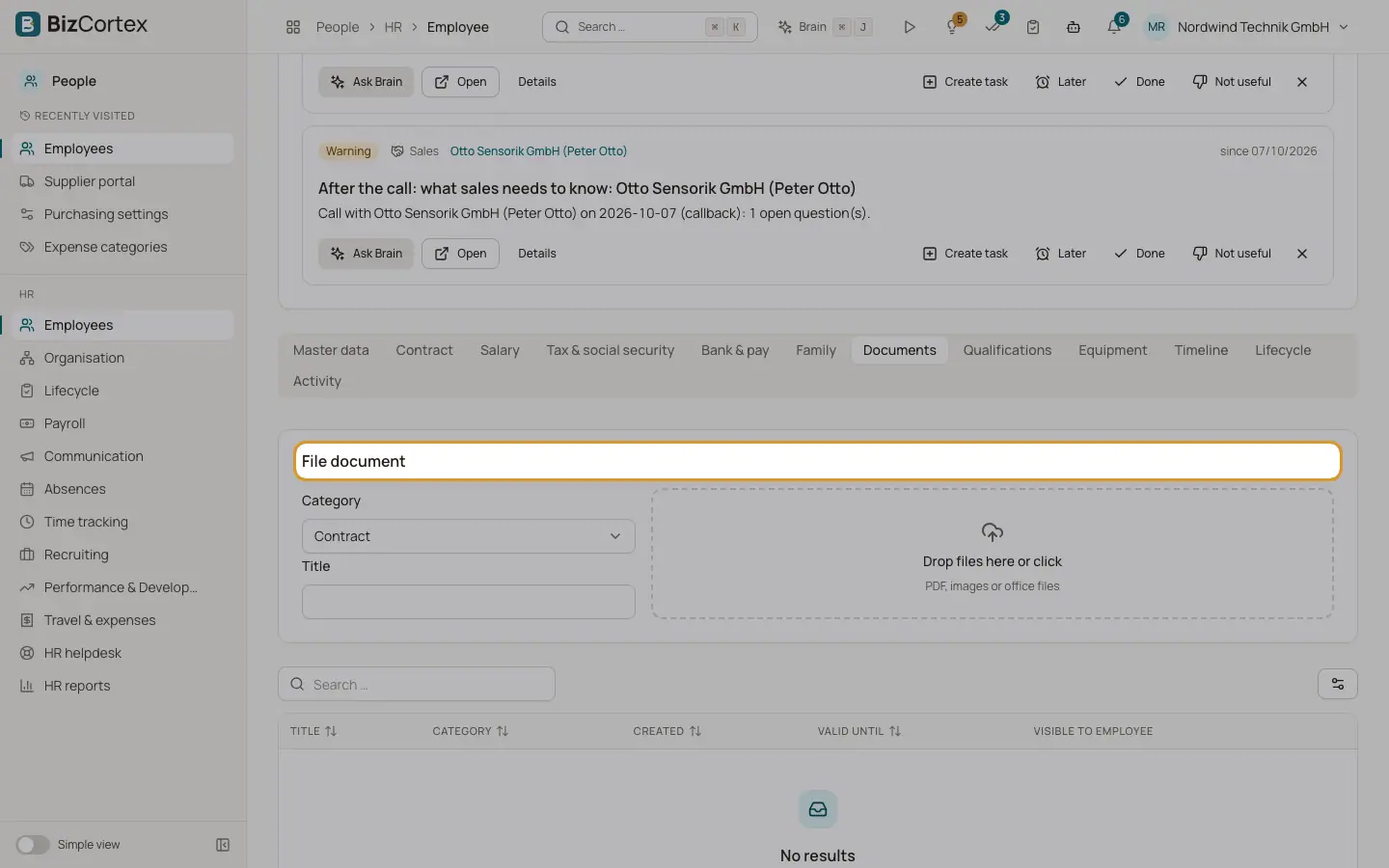
The Documents tab of an employee record is the digital personnel file. Each document has a category, a title, an optional expiry date and a visibility flag. Documents released to the employee appear in My area under Documents. Sick notes uploaded in Absences and CVs copied from a hired applicant also land here.
Who can use this
- Owner
- Admin
- HR manager
Steps
1. File a document
In the card "File document" choose the category, enter a title and optionally a "Valid until" date, choose the file (PDF, images or office files) and confirm. The message "Document filed" appears.
2. Release or hide
Use the row menu: "Release to employee" makes the document visible in My area. "Hide from employee" makes it HR only again.
3. Download or delete
Use Download or Delete in the row menu.
4. Send for signature
For PDF documents the row menu offers "Send for signature". It opens the electronic signature wizard with the employee as signer.
5. Generate a document from a template
In the Lifecycle tab use "Generate document from template". Choose a template, optionally enter a title and additional placeholders (one key=value per line), decide whether it is visible to the employee, then click Preview or "Generate & download PDF". The PDF is filed in the personnel file automatically.
6. Generate a reference letter
In the Lifecycle tab use "Generate reference letter (Arbeitszeugnis)". Choose Final reference or Interim reference, decide whether it is a qualified reference (with evaluation), grade Performance and Conduct from 1 (very good) to 5 (poor), and enter the job title, tasks, end of employment or the occasion of an interim reference. You can use the standard text or your own reference template.
Fields and options
- Category
Contract, Reference letter, Payroll documents, Sick note, ID document, Qualification, Written warning, Application documents or Other.
- Valid until
Expiry date, for example of an ID document or a work permit.
- Visible to employee
Shown with an eye icon. Hidden documents are marked HR only.
Tips
- Generated letters use the company letterhead and the language of the company country. A signature image from your user settings can be printed above the signature line.
Good to know
- A final reference needs an end of employment date or an exit date in the record.
- Uploads are limited to 25 MB per file.
Related
- Document templates
Build contract, letter and reference templates with placeholders.
- The employee record and its tabs
All tabs of a personnel record and what you can do in each of them.