Pipeline, applications and interviews
Move applications through the stages, schedule interviews and collect scorecards.
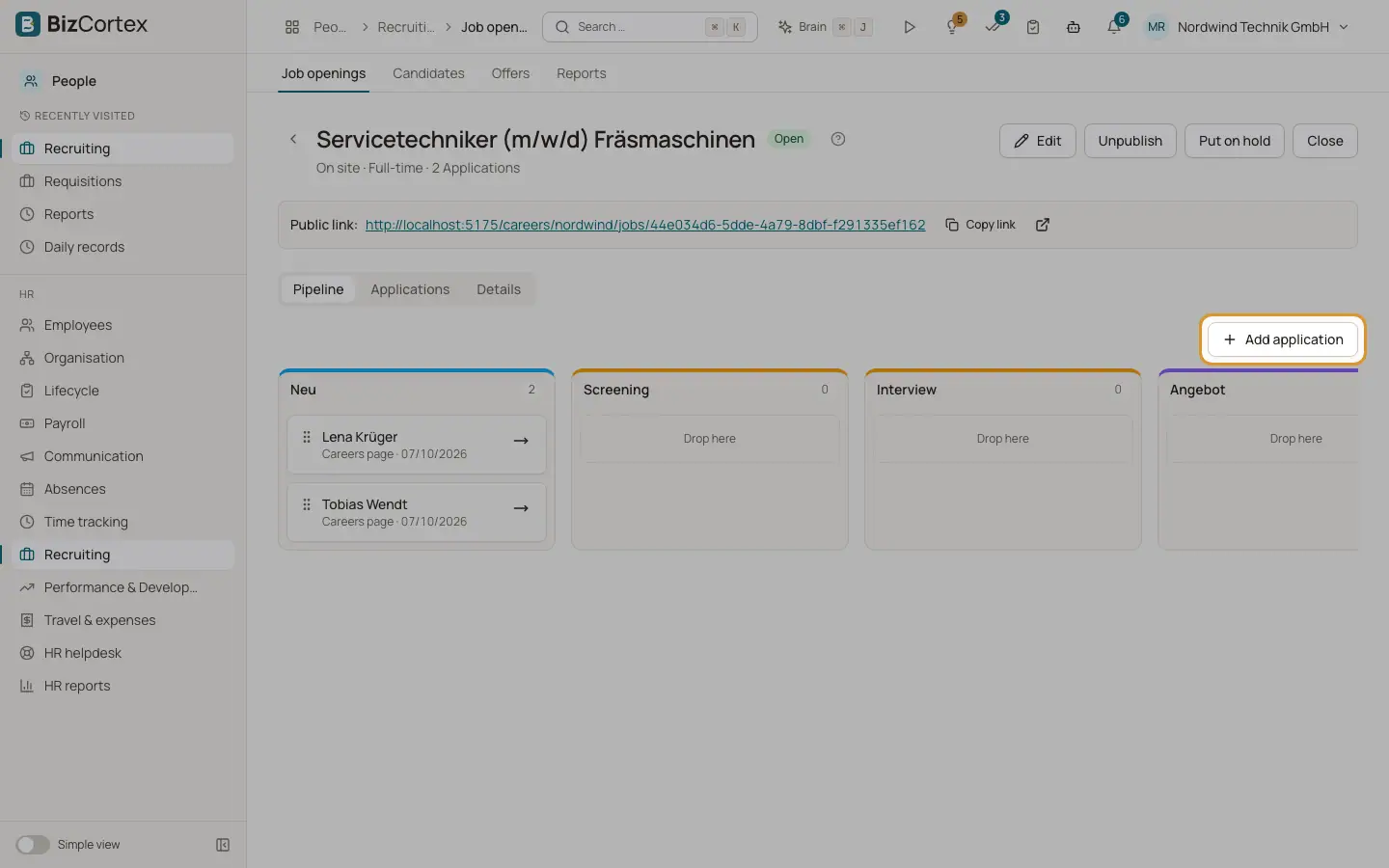
Each job opening has the tabs Pipeline and Details. The pipeline is a board with one column per stage. The default stages are New, Screening, Interview, Offer, Hired and Rejected. You can drag applications between columns or use "Move to" in the card menu.
Who can use this
- Owner
- Admin
- HR manager
- Interviewers see their interviews in My area, My interviews
Steps
1. Add an application
Click "Add application". Choose "Existing candidate" or "New candidate", enter the details, the source and optionally a cover letter and a CV.
2. Move an application
Drag the card to another column, or use "Move application". Moving to Hired is not possible on the board; hiring happens through the offer.
3. Open an application
Click the card. The application page shows the CV ("Download CV", "Upload CV"), interviews, the scorecard and offers.
4. Schedule an interview
Click "Schedule interview". Choose the kind (Phone, Video, On site, Technical), start, end, a video link and the interviewers (at least one). The interviewers are notified.
5. Give feedback
Interviewers open My area, My interviews (filter "Upcoming only") and click "Give feedback". They rate each scorecard criterion, choose a recommendation (Strong no to Strong yes) and add comments. The scorecard shows the average per criterion.
6. Reject
Click Reject and choose a rejection reason. The application moves to the Rejected stage.
Fields and options
- Source
Careers page, Referral, LinkedIn, Indeed, StepStone, Agency or Other.
- Interview status
Scheduled, Completed or Cancelled.
Good to know
- CVs must be PDF, DOC or DOCX and at most 10 MB.
- Hired applications cannot be moved or rejected.
- A stage that still contains applications cannot be deleted.
- Candidates do not receive automatic emails from BizCortex. Contact them yourself.
Related
- Offers and hiring
Create an offer letter, record the answer and turn the candidate into an employee.
- Candidates, talent pool and GDPR
Search all applicants, keep a talent pool and delete applicant data on time.