Roster, shift types and shift swaps
Plan shifts per employee and day and handle swap requests.
People, Time tracking, Roster shows a planner with one row per employee and one column per day. The shift of a day comes from an exception first, then from the weekly pattern, then from the contract. Absences are shown in the roster.
Who can use this
- Owner
- Admin
- HR manager
- Employees see their shifts in My area, My shifts
Steps
1. Create shift types
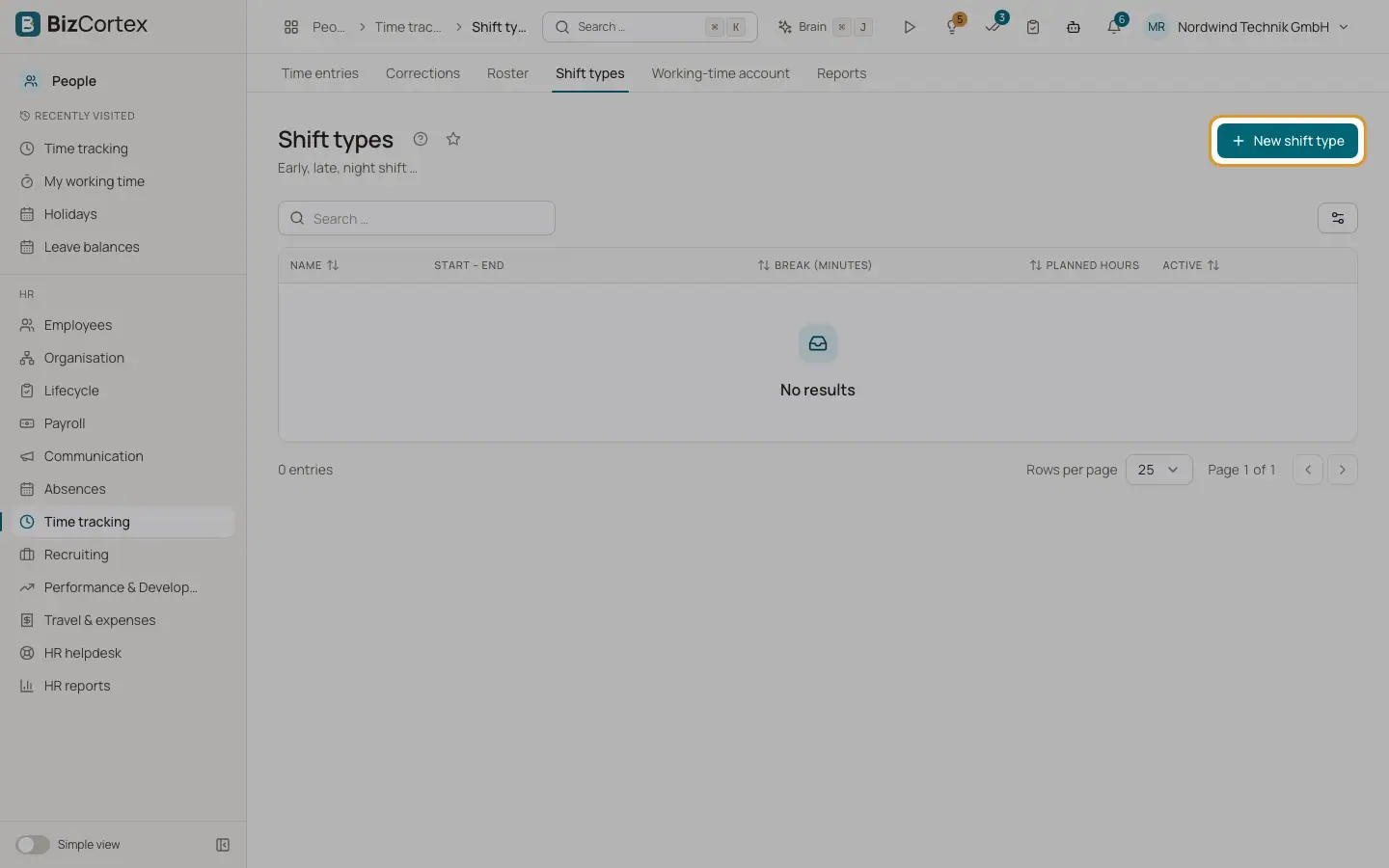
Open Shift types and click "New shift type". Enter name, code, start, end, break in minutes and color. Planned hours are calculated. A shift whose end is before its start crosses midnight.
2. Set a weekly pattern
In the roster open "Weekly pattern" for an employee. Choose the shift per weekday and the period with "Valid from" and "Valid to".
3. Plan an exception
Click a cell in the roster. Choose a shift or mark the day off. The exception overrides the weekly pattern. Use "Remove exception" to go back to the pattern.
4. Switch the view
Choose "1 week" or "2 weeks" and navigate with Back, Next and Today.
5. Handle swaps
Employees request a swap in My shifts with "Request swap". The colleague accepts or declines. Then the manager or HR approves or rejects it in Shift swaps.
Fields and options
- Swap status
Waiting for colleague, Waiting for approval, Approved, Rejected, Declined (colleague) or Cancelled.
Good to know
- Past shifts cannot be swapped. At least one of the two people must have a shift on that day, and the shifts must differ.
- A shift type used in a roster cannot be deleted. Deactivate it instead.
- The roster shows at most 93 days at once.
Related
- Daily records and working time account
Daily evaluation of working time with Working Hours Act checks, and overtime balances.