Goals and OKRs
Company, department and employee goals with measurable key results.
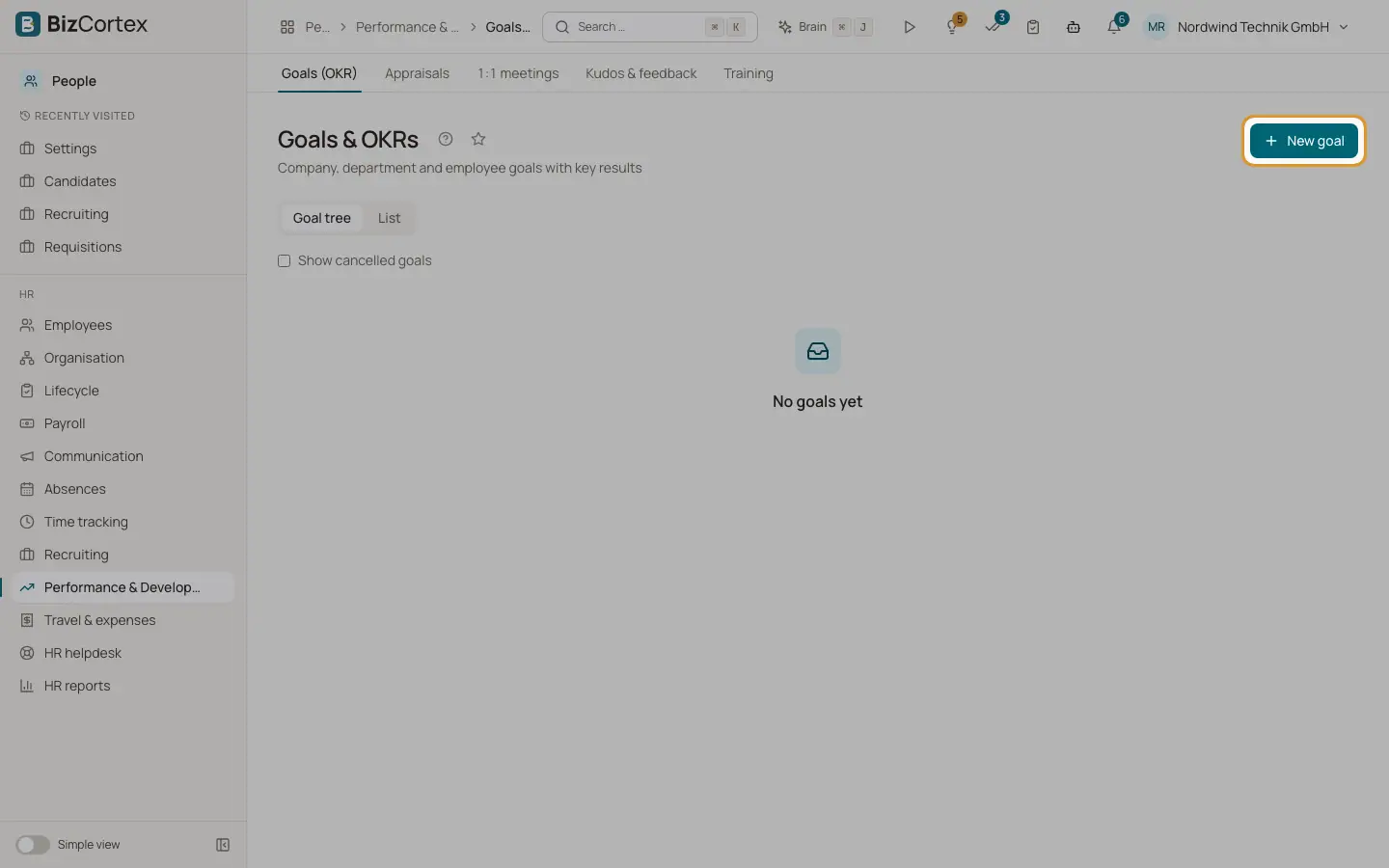
People, Performance and Development, Goals (OKR) shows all goals as a Goal tree or a List. A goal has a level (Company, Department or Employee), an owner, a period, a weight, a visibility (Public or Private) and optional key results. A goal can be aligned to a parent goal, which links it in the OKR tree.
Who can use this
- Owner
- Admin
- HR manager
- Employees for their own goals (My area, My goals)
- Managers for their team (My area, My team's goals)
Steps
1. Create a goal
Click "New goal". Enter the objective, level, owner or department, the parent goal ("Aligned to"), start, end, weight and visibility.
2. Add key results
Click "Add key result". Choose the metric (Number, Percent, Amount, Yes/No), start value, target value and unit. Start and target must differ.
3. Check in
Open the goal and record a check in on a key result with the new value and a note. For Yes/No enter 1 for achieved and 0 for not achieved. The history lists all check ins.
4. Goals without key results
Enter the progress in percent manually.
5. Filter
Filter by level, status and department. Turn on "Show cancelled goals" to include cancelled goals.
Fields and options
- Status
Draft, Active, Achieved or Cancelled.
Good to know
- Employees cannot publish goals. Only HR can set a goal to Public.
- A goal cannot be aligned to one of its own sub goals.
Related
- Appraisal cycles and 360 degree feedback
Run review cycles with templates, self reviews, manager reviews, calibration and peer feedback.