Salary history
Record salary changes with an effective date, including future raises.
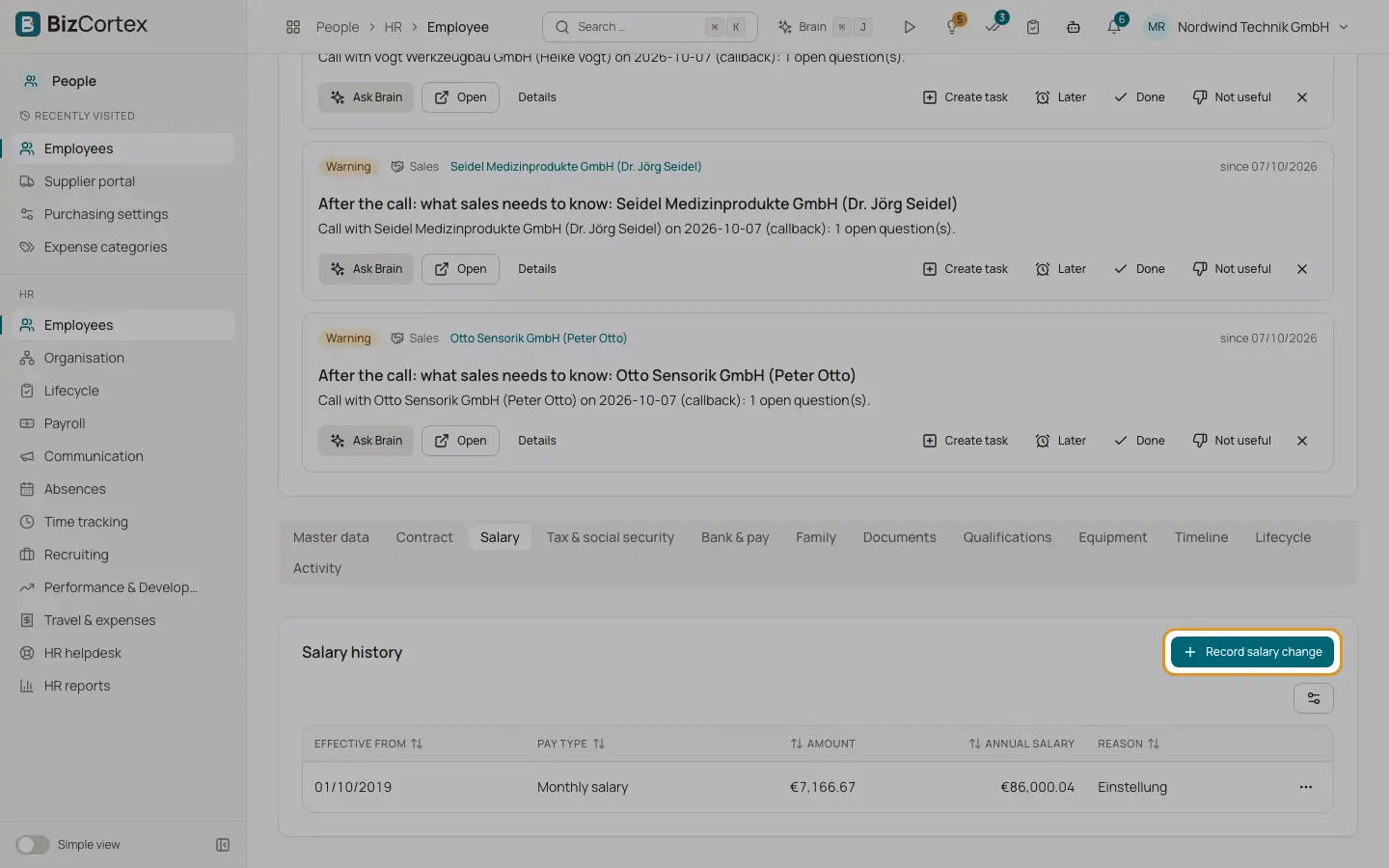
The Salary tab shows every pay change of the employee with the effective date, the amount, the annual salary and a reason. A chart shows the salary development. Future entries are marked planned and take effect automatically on their date.
Who can use this
- Owner
- Admin
- HR manager
Steps
1. Record a change
Click "Record salary change". Enter "Effective from", the amount (monthly salary or hourly rate, depending on the pay type) and a reason. Save.
2. Plan a raise
Enter a future effective date. The entry stays planned. A nightly job copies it into the record when the date comes.
3. Delete an entry
Use Delete in the row menu if an entry was wrong.
Tips
- A promotion recorded as a personnel action can also carry a new salary. That creates the salary entry for you.
Related
- Personnel actions: promotions, transfers, exits and rehires
Record effective dated changes to a personnel record and keep a clean history.
- The employee record and its tabs
All tabs of a personnel record and what you can do in each of them.