Inbound URLs, calendar webhooks and deliveries
Receive data from other apps and check that calendar events reach BizCortex.
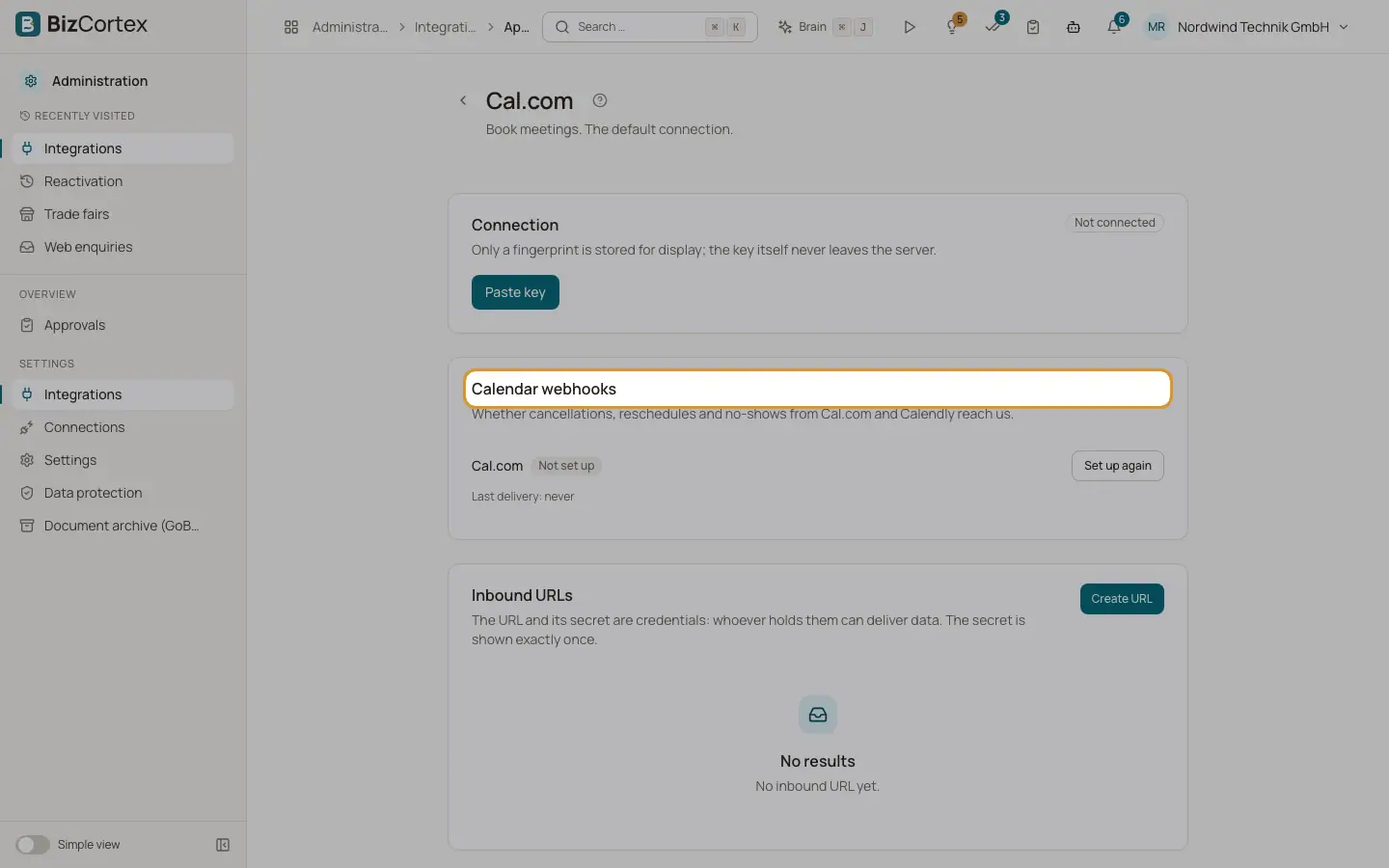
On the settings page of an app you can find up to three more cards: "Inbound URLs", "Calendar webhooks" (Cal.com and Calendly) and "Recent deliveries". The Apps page also shows the calendar webhook health for all calendars.
Who can use this
- Owner
- Administrator
- Sales (read only)
Steps
1. Create an inbound URL
Click "Create URL". Copy the URL and the secret now; the secret is shown only once. Whoever holds them can deliver data.
2. Rotate or revoke
Use "Rotate secret" (the previous one stays valid for 24 hours), "New URL", "Reveal" (recorded in the audit log) or "Revoke" (deliveries are refused from now on).
3. Repair a calendar webhook
The card "Calendar webhooks" shows whether cancellations, reschedules and no shows from Cal.com and Calendly arrive. Click "Set up again", or "Show for manual setup" to enter URL and secret in the calendar by hand.
4. Retry a delivery
In "Recent deliveries" see event, status, attempts and time. Click "Run again".
Fields and options
- Webhook states
Active, Being set up, Failed, Plan too small, Set up manually, Through the platform, Off, Not connected, Not set up.
Good to know
- If nothing arrived for 14 days although meetings were booked, the card asks you to set it up again.
Related
- Integrations: connect apps
Calendars, CRM, ticketing, your own data, notifications and connectors the agent uses.