Replies to follow up emails
What contacts answered, what the agent read from it and already did, and what you should check.
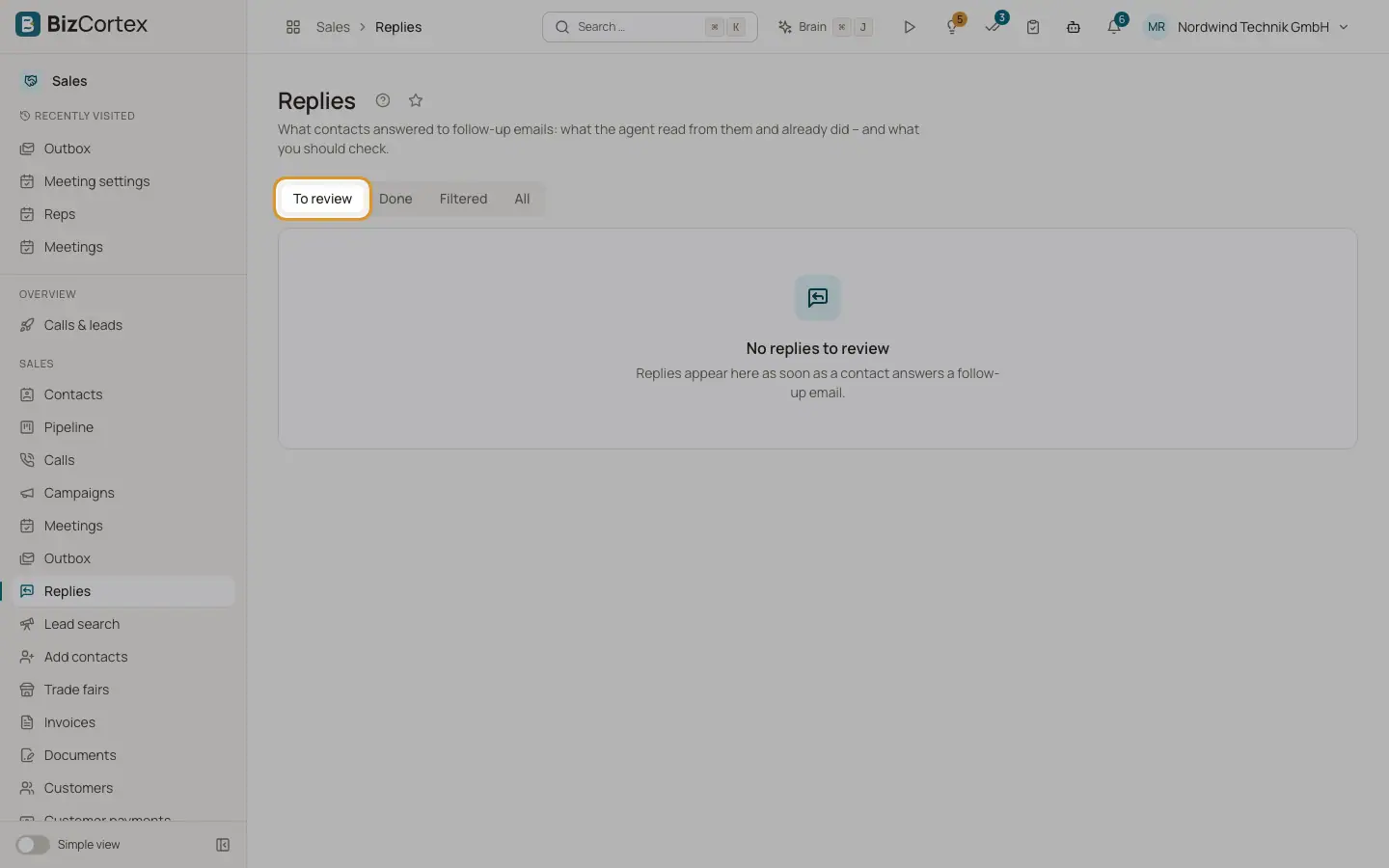
Open the Sales app and click "Replies". The tabs are "To review", "Done", "Filtered" and "All". Each reply shows its classification, a summary, proposed times, attachments and the actions already taken.
Who can use this
- Owner
- Administrator
- Sales
- Viewer
Steps
1. Mark as done
Click "Done", or "Done & resume sequence" to let a held sequence continue.
2. Correct the classification
Click "Correct", choose the classification and, where asked, a meeting time or a date. Click "Apply". It is applied as if the agent had been sure. What was already done is not undone.
3. Forward again
Click "Send to rep again" to resend the copy to the rep.
4. Open the draft
If the agent drafted an answer, click "Open reply draft" to review it in the outbox.
Fields and options
- Classifications
Time proposed, Wants proposed times, Question, Later, Not interested, Unsubscribe, Wrong person, Out of office, Other auto reply, Meeting confirmed, Reschedule meeting, Cancel meeting, Other.
- Kinds
Reply, Auto reply, Undeliverable, From the rep, Loop, Spam.
- Flags
Reasons the reply needs a person, for example "Possible unsubscribe", "Data protection request", "Time not free" or "Too unsure to book".
Good to know
- An unsubscribe is always applied at once: no more emails and no more calls. Only the compliance centre can undo it.
Related
- Email follow up settings
Whether and how recap emails, reminders, follow up calls and replies work.