Calls and leads overview
The starting page of phone sales: what is still missing before the first lawful call, and the key numbers.
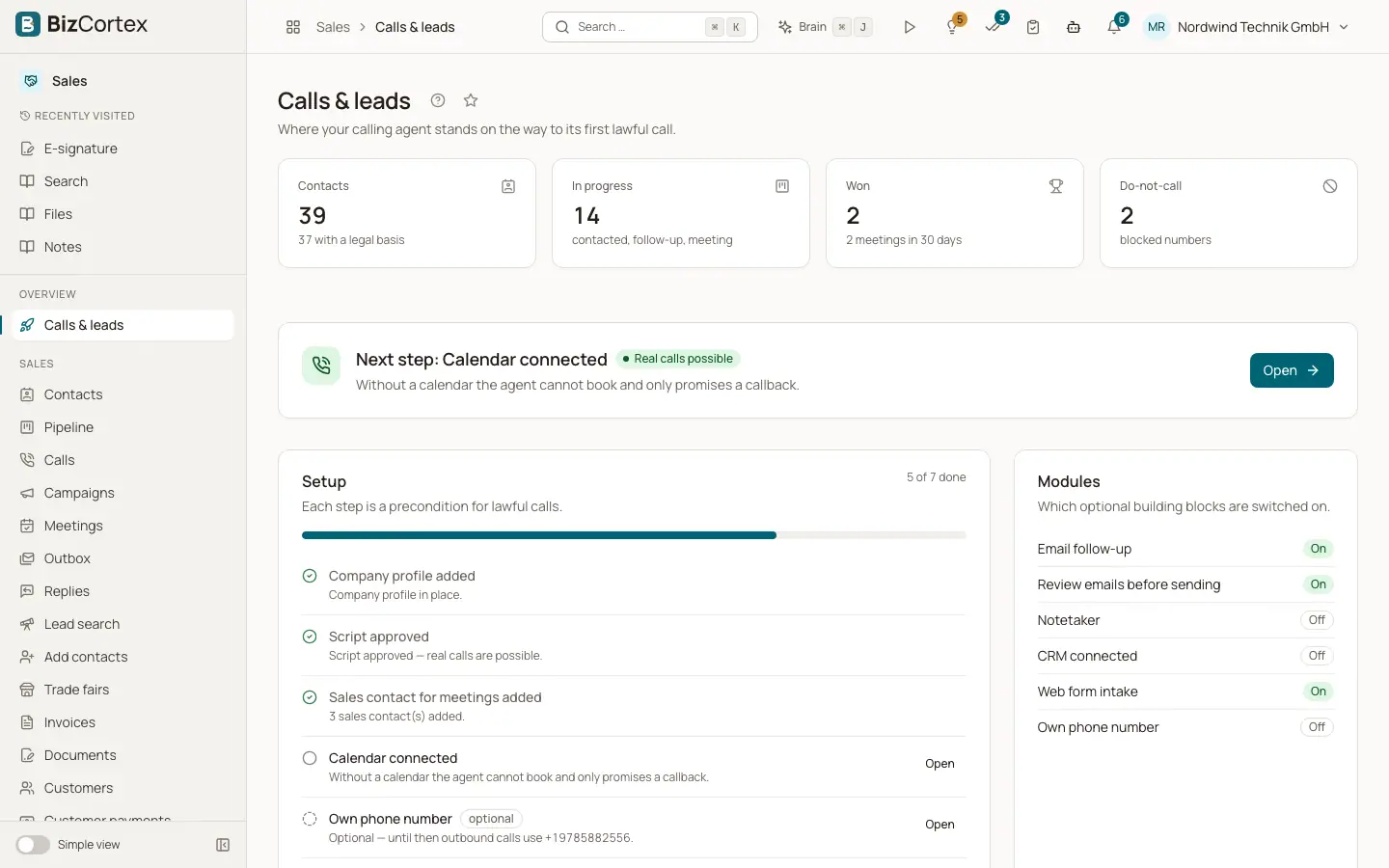
The calling features of BizCortex live in the Sales app. They belong to the "Sales calling" package (leads, AI calling, campaigns, meetings, follow up, lead finding and CRM integrations). When the package is booked, the Sales tile in the app launcher opens the page "Calls & leads". It shows where your calling agent stands on the way to its first lawful call.
At the top you see five numbers: Contacts (with how many have a legal basis), In progress (contacted, follow up and meeting), Won (with the meetings booked in the last 30 days), Data upkeep (items to review) and Do not call (blocked numbers). Below them a large card names the current phase and the next thing to do, and a badge says "Real calls possible" or "No real calls yet".
Who can use this
- Owner
- Administrator
- Sales
- Compliance (audit only)
- Viewer
- Anyone with the CRM lead read permission
Steps
1. Open the overview
Open the Sales app from the app launcher. In the sidebar, click "Calls & leads". The same page is the target of the "Calling agent" widget on your Home page (button "Open setup").
2. Read the phase card
The phase card shows one of these states. "Set up your calling agent": you have not started the brief yet; 15 questions about your offer, audience and objections become your script, which takes about 15 minutes. "Next step": the next open setup step is named. "We are reviewing your script": the script was submitted and our team checks it. "Your script needs changes": the reviewer left a note; click "Revise the script". "Your agent is approved": you only need contacts with a documented legal basis. "All set": your agent calls, follows up and books meetings.
3. Work through the setup checklist
The card "Setup" lists every precondition for lawful calls with a counter such as "4 of 7 done". Steps marked "optional" do not count. Most open steps have an "Open" link that takes you to the right page.
4. Check the modules
The card "Modules" shows which optional building blocks are switched on: Email follow up, Review emails before sending, Notetaker, CRM connected, Web form intake and Own phone number. Each shows "On" or "Off".
Fields and options
- Company profile added
The agent needs context about what you offer.
- Script approved
Answer the brief questions, generate the script, make a test call and submit it for approval. Real contacts are only called after approval. The step also shows the number of completed test calls and open answers.
- Sales contact for meetings added
Without at least one rep no meeting can be booked. The link opens Meetings, Reps.
- Calendar connected
Without a booking calendar the agent cannot book and only promises a callback. The link opens Meetings, Calendar.
- Own phone number (optional)
Until you have one, outbound calls use the platform number. The link opens the Hotline page of the Voice studio.
- AI disclosure (EU AI Act Art. 50) in place
Created automatically once your script is approved.
- Calling hours set (optional)
Without your own hours the German business hours apply: Monday to Friday, 9:00 to 12:00 and 14:00 to 17:00.
- Contacts added
How many contacts are on file. The link opens "Add contacts".
- Legal basis (UWG §7) documented
How many contacts have a documented reason to call. The link opens the contact list filtered to contacts without a legal basis.
- Own API keys (optional)
Without your own keys the platform keys are used. The link opens Integrations.
Good to know
- The steps "Company profile added" and "Calling hours set" have no editing page in the app yet, so they show no "Open" link. This is not available yet as a self service setting; ask your BizCortex contact to change them.
- Pages marked as specialist pages (for example Data upkeep, Compliance, Call analytics, Voice studio, Reactivation and Web enquiries) are hidden from the sidebar in the "Simple view". You can still reach them through search or the app start page, section "For specialists".
Related
- Voice studio: brief and script approval
Answer fifteen questions, generate the call script, test it and submit it for approval.
- Calling rules: the dial check
The checks every call passes: legal basis, opt outs, calling hours, attempts, countries and approval.
- Ways to add contacts
The chooser for web search, manual entry, CSV, HubSpot, website form, trade fairs, reactivation and similar companies.