Hotline: incoming calls
Phone numbers, tickets, caller verification and your own API for the agent that answers calls.
The hotline lets the AI agent answer incoming calls, for example from existing customers. Open Voice studio, "Hotline". The tabs are "Numbers", "Tickets and verification" and "Your API". An incoming caller needs no legal basis. The AI disclosure is still spoken first, and a caller who opted out is not answered by the agent. An unknown caller is created as a contact with the source "Hotline (inbound)". The text the agent follows on the hotline is set in Agent settings, "Brief text", "Hotline".
Who can use this
- Owner
- Administrator
- Sales (read only)
Steps
1. Buy a number
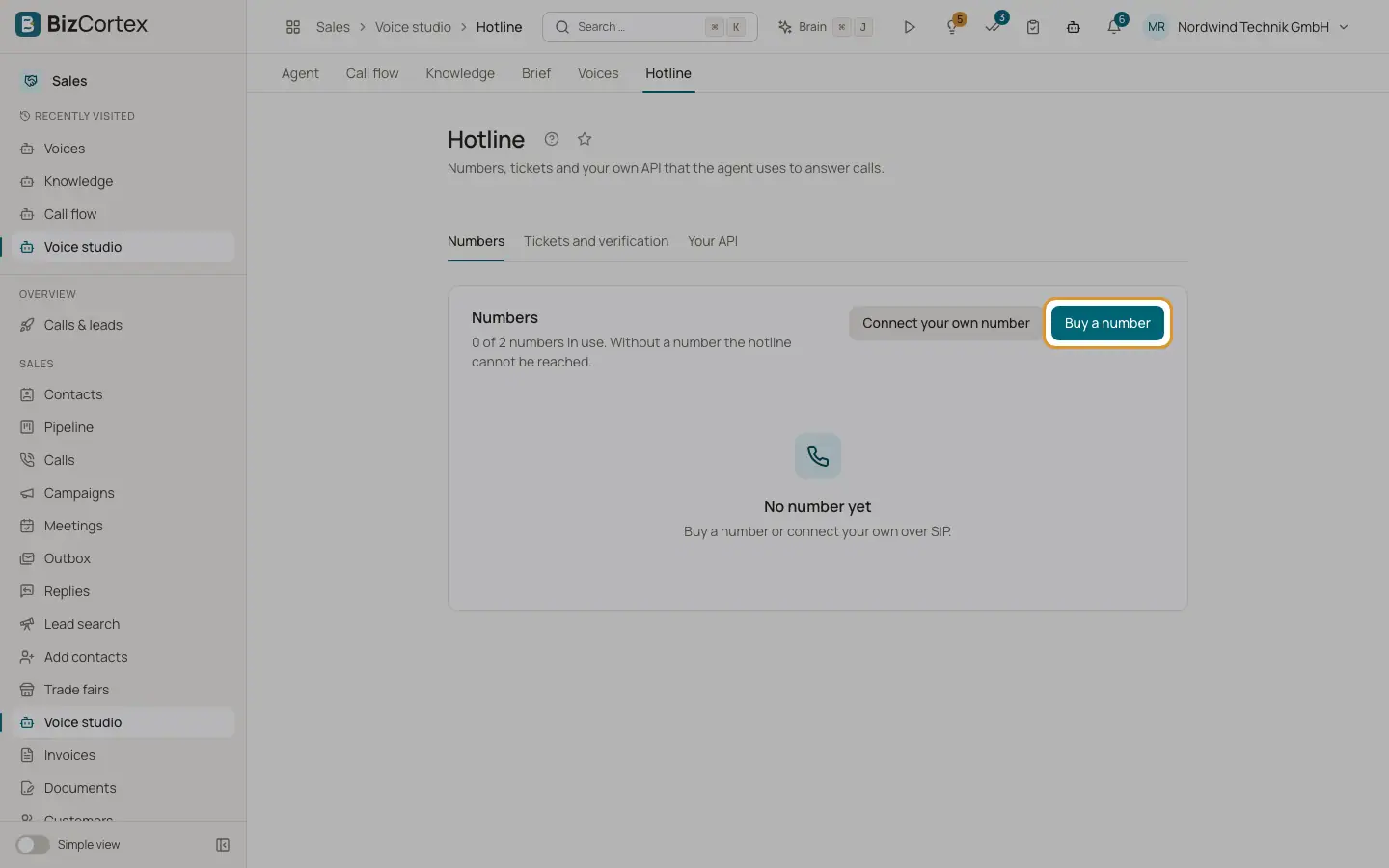
On "Numbers" click "Buy a number". Choose the country (Germany, Austria, Switzerland, Netherlands, United States), optionally digits it should contain (up to 8), and click "Search available numbers". Pick one or click "Buy the first available". The provider bills the monthly cost.
2. Connect your own number
Click "Connect your own number". Your telephone provider forwards calls over SIP to the target shown. Enter the number in the format +49301234567 and the allowed IP addresses or ranges of your provider (at most 16). Click "Connect".
3. Manage numbers
Each number shows source, status and allowed senders. Use "Reconnect" or "Release". Releasing gives the number back for good.
4. Tickets
On "Tickets and verification" choose when a ticket is opened ("When the request stays open or the caller asks for a person" or "Only when the request stays open") and the helpdesk: Zendesk, Jira Service Management, Salesforce, ServiceNow, Freshdesk, Zammad or HubSpot. Enter the instance and project. Click "Check connection".
5. Caller verification
Before the agent discusses personal records, the caller must give an agreed detail, for example a customer number. Set the detail (the parameter of your API), how the agent asks for it and the number of attempts. The number on the display is not enough.
6. Your API
On "Your API" enter the base URL, the OpenAPI description URL and the authentication (Bearer token, Custom header or None). Click "Import endpoints". New endpoints are switched off; switch on the ones the agent may call and mark those that return personal data. "Remove API" deletes the registration, every endpoint and the token.
Fields and options
- Number status
Active, Setting up, Awaiting documents, Released, Suspended.
- Number limit
By default up to 2 numbers per company.
- Endpoints
At most 40 endpoints are imported. Endpoints with personal data only answer after the caller is verified. The API is read only.
Good to know
- If the platform has no number purchase set up, you see "Purchase not set up"; you can still connect your own number.
Related
- Integrations: connect apps
Calendars, CRM, ticketing, your own data, notifications and connectors the agent uses.
- Voice studio: agent settings
Custom brief text, tools and MCP servers, speech, call and transcription settings.