HubSpot
What lands in HubSpot from your calls, which script runs per deal stage, and pulling contacts.
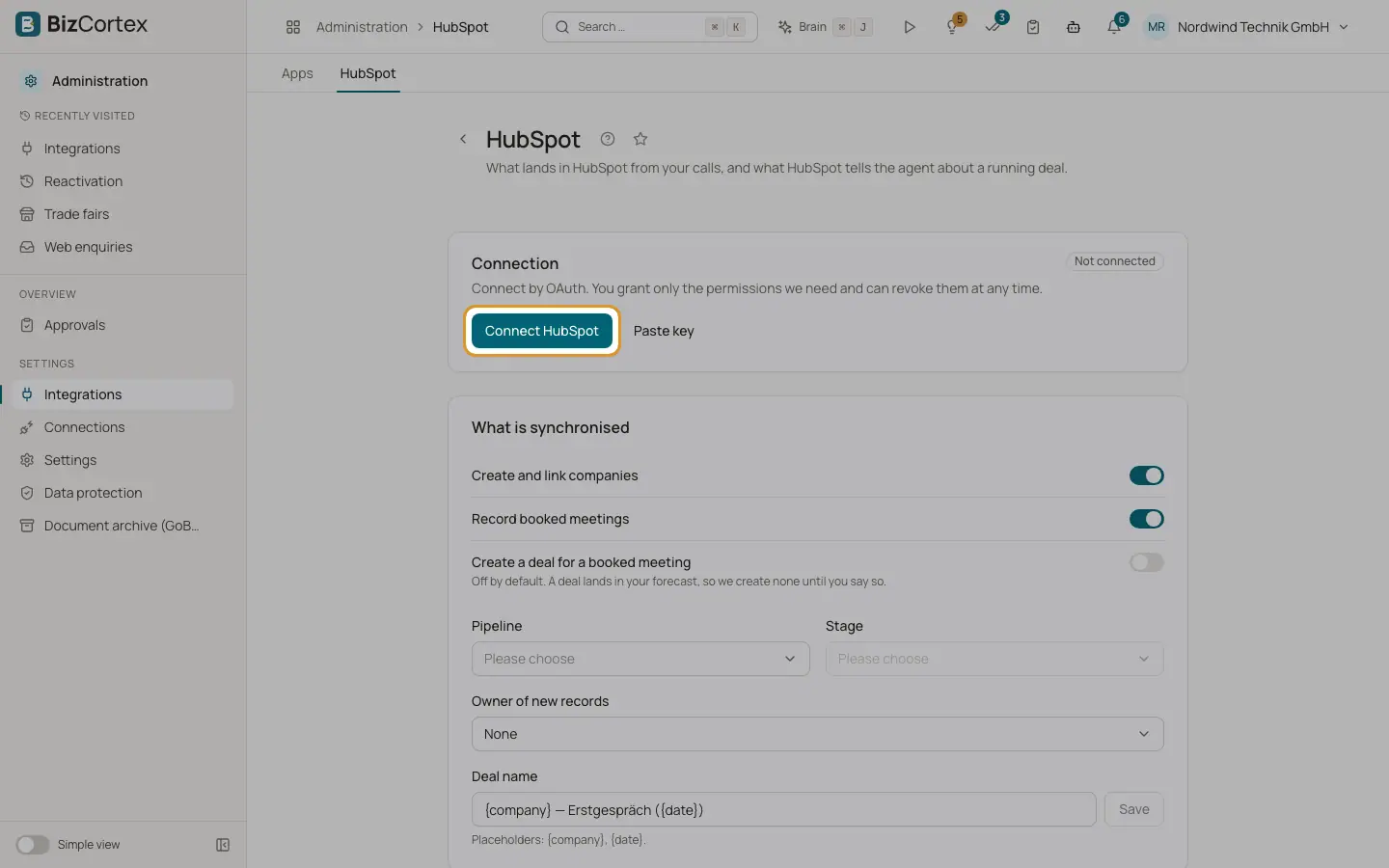
Open the Administration app, "Integrations", "HubSpot" (specialist page). Connect by OAuth with "Connect HubSpot" or by a pasted token. Click "Check connection" to verify.
Who can use this
- Owner
- Administrator
- Sales (read only)
Steps
1. Choose what is synchronised
Switch on "Create and link companies", "Record booked meetings" and "Create a deal for a booked meeting". For deals choose pipeline, stage, owner of new records and the deal name (placeholders {company} and {date}). Click "Save".
2. Map scripts to stages
Under "Which script for which stage" choose a script per deal stage: Cold call (default), Check in, Decision or Renewal. When a deal sits in that stage, the agent calls with that script. Click "Save mapping".
3. Pull contacts
Click "Pull now" or open the import dialog and click "Load preview". Then "Import without reason", or tick "Import with a documented reason", write the reason (at least 20 characters), choose the kind, confirm and click "Import with reason".
4. Check activity
"Recently written to HubSpot" lists object, HubSpot ID and time.
Fields and options
- Create a deal for a booked meeting
Off by default, because a deal lands in your forecast.
- Closed stages
A warning appears if you choose a closed stage. Closed stages are never called.
- Import numbers
Imported, Callable now and Blocked without a legal basis. Numbers are normalised to international format; contacts without a usable number are skipped.
Good to know
- An import is no permission to call. Each blocked lead needs a documented reason under §7 UWG.
Related
- Integrations: connect apps
Calendars, CRM, ticketing, your own data, notifications and connectors the agent uses.
- Data upkeep
Review unclear numbers, addresses and contact persons found in calls, emails and checks.