Import contacts from CSV or Excel
Upload a list, map the columns and record the legal basis for every imported contact.
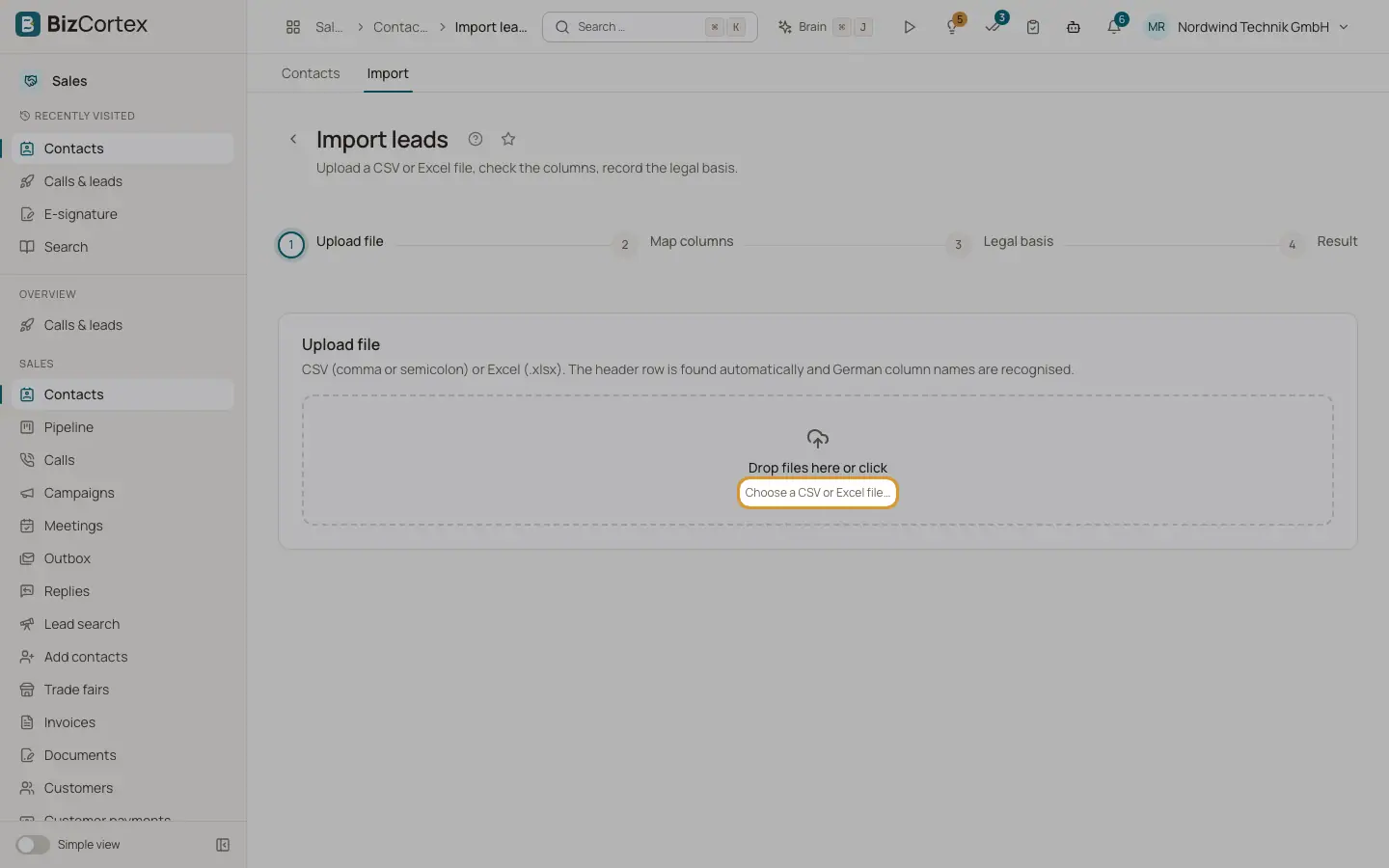
Open Contacts and click "Import", or click "Import" under Contacts in the sidebar. The import runs in four steps: Upload file, Map columns, Legal basis and Result.
Who can use this
- Owner
- Administrator
- Sales
Steps
1. Upload file
Click "Choose a CSV or Excel file…". CSV files with comma or semicolon and Excel files (.xlsx) are accepted. The header row is found automatically and German column names are recognised.
2. Map columns
Each column of your file is shown with an example value. Pick the matching field or "ignore". Fields: Company, Contact person, Phone, Email, Website, Language, Time zone and Reason (§7 UWG). Unmapped columns are stored as extra fields. Company and Phone are required; without them the import cannot run. Rows with problems are listed with their row number and reason.
3. Legal basis
Choose the type ("Presumed consent (B2B)" or "Existing customer") and write the concrete reason. It is attached to every imported contact. Choose the language of the contacts. If the reason is too short, the button warns that the contacts will be blocked.
4. Run the import
Click "Import N rows". The result shows Created, Duplicates skipped and Failed. Click "Go to contacts" or "Import another file".
Good to know
- A file may be at most 5 MB and 20,000 rows.
- Contacts imported without a reason are kept but cannot be called until you document one for each.
- Duplicates are skipped and not changed.
Related
- Legal basis and consent
Document the reason to call (§7 UWG) and record express consent for email.
- Contacts list
All contacts for phone sales with company, stage, legal basis, source and next step.