Capturing business cards at the stand
Photograph a card on a phone, check the fields and save.
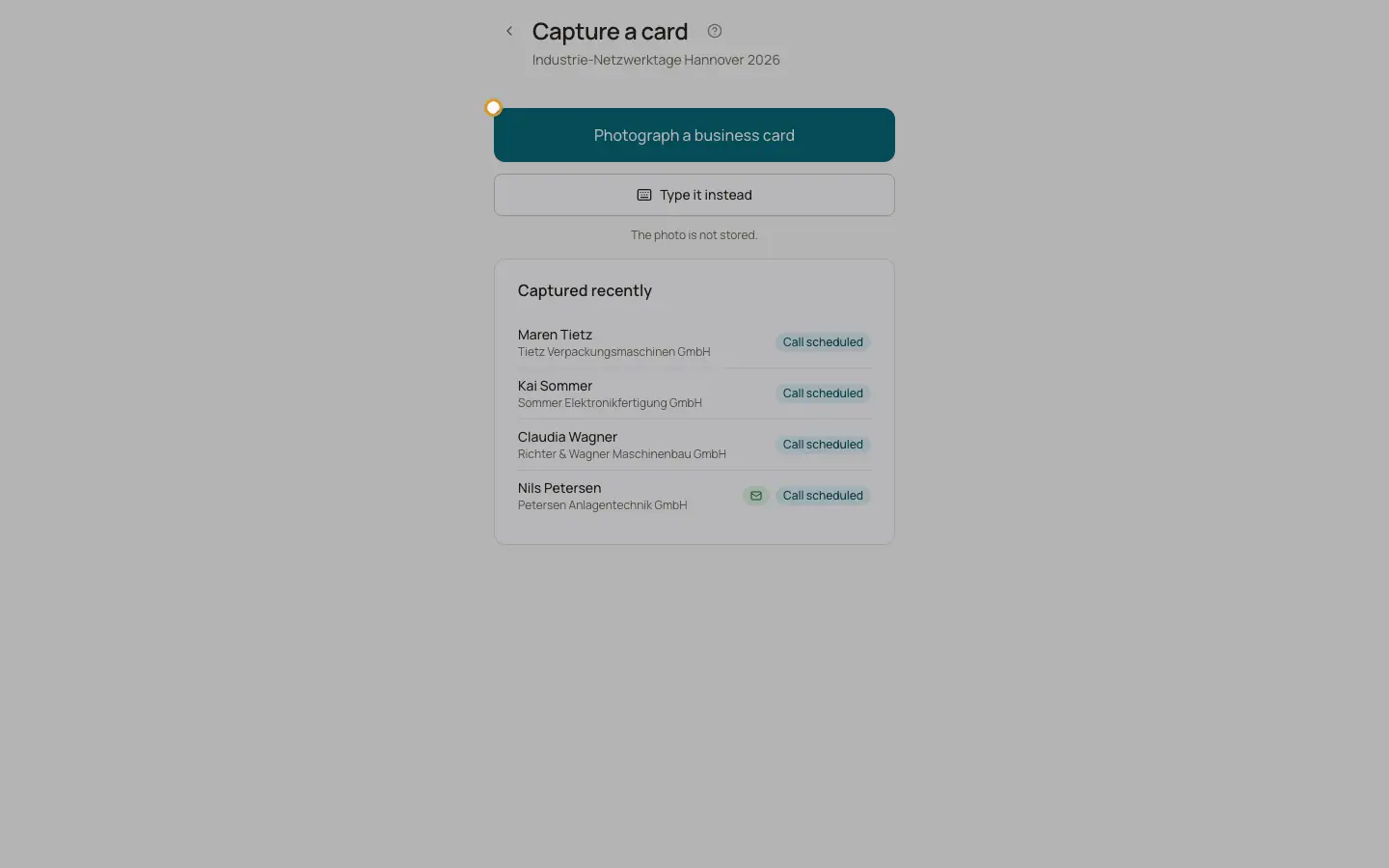
The capture page runs on a phone without the app menu. You must be signed in. Photograph the business card; the card is read automatically. The photo is not stored.
Who can use this
- Owner
- Administrator
- Sales
Steps
1. Photograph the card
Tap "Photograph a business card", or "Type it instead". Wait for "Reading the card …".
2. Check every field
Check company, first name, last name, position, phone, email, website and a one line note. Warnings tell you, for example, that only the switchboard was found or the email is private.
3. Email consent
Read the consent sentence aloud. Only if the contact agrees, tick "Email allowed". An email consent needs an email address and the wording.
4. Save
Tap "Save & next card". "Captured recently" lists the last cards. "Back to the fair" returns to the fair page.
Good to know
- Photos must be JPEG, PNG or WebP and at most 4 MB.
- If the card reader is not set up, type the card.
- A contact without a phone number is looked up again before it can be called.
Related
- Trade fairs
Plan a fair, capture contacts at the stand and have them called after the fair.