Recording an asset disposal
Record the sale or scrapping of all or part of an asset, with automatic postings.
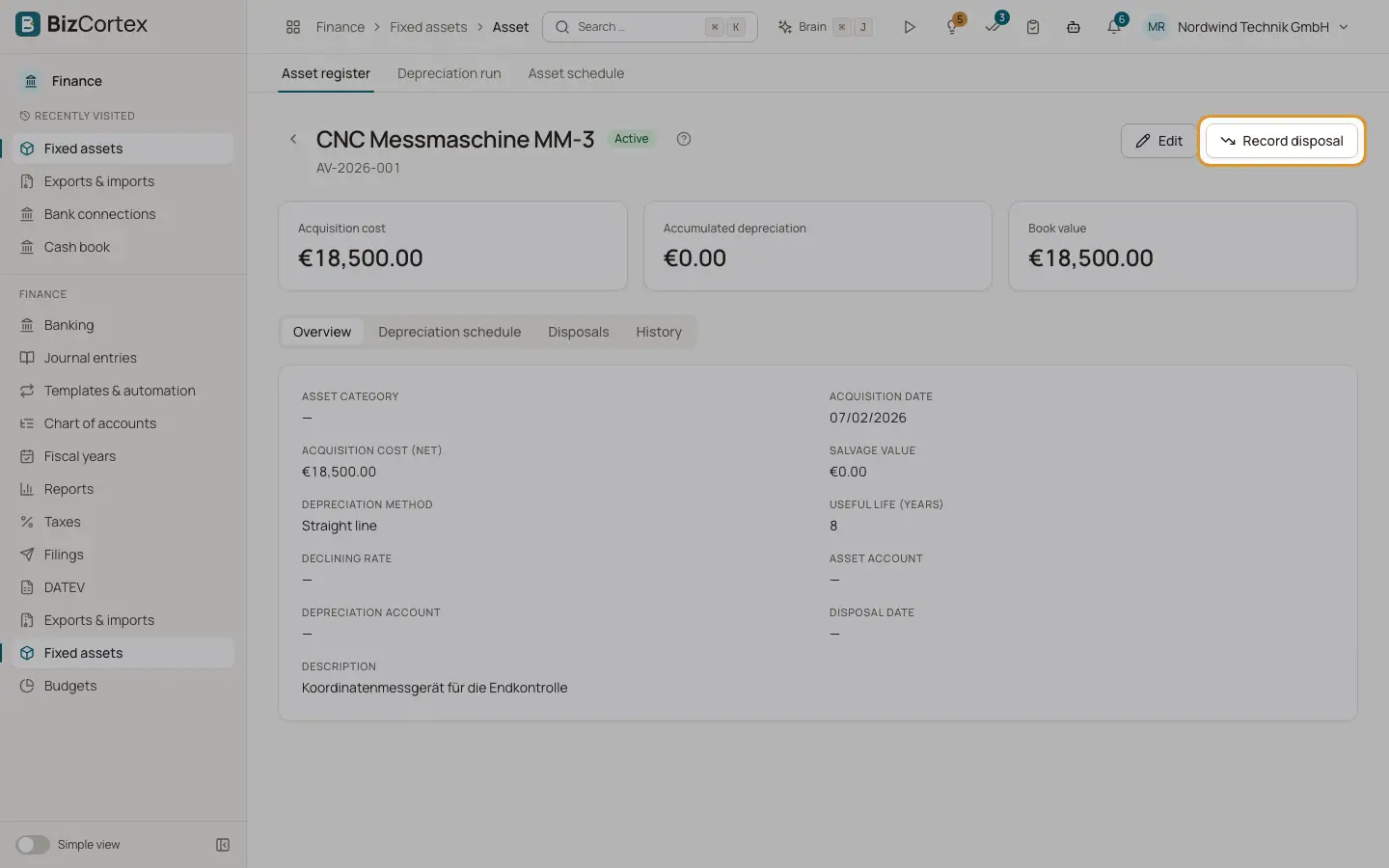
Choose "Record disposal" in the row menu of the asset register or on the asset detail page. BizCortex first posts the pro rata depreciation up to and including the disposal month. Then it writes off the remaining book value and, if you sold the asset, posts the sale proceeds with VAT. The result is shown as a gain or a loss.
Who can use this
- Owner
- Admin
- Accountant
Steps
1. Enter the date
Enter the Disposal date. It cannot be before the acquisition date.
2. Choose the scope
Under Scope choose Full disposal, Partial disposal (percent) with a Share in % between 0 and 100, or Partial disposal (cost amount) with the Cost disposed.
3. Enter the sale
Enter the Sale price (net), 0 if the asset was scrapped. Check the Tax code (default UST19) and optionally choose a Counter account; the default is receivables.
4. Confirm
Add a Note if you like and click "Record disposal". The result shows cost disposed, depreciation disposed, book value, net proceeds, VAT and the gain or loss.
Good to know
- A full disposal sets the asset to Disposed and removes its planned depreciation. A partial disposal reduces the remaining schedule in proportion.
- For pool assets the disposal does not reduce the pool; only the proceeds are posted.
- An asset that is already disposed cannot be disposed again.
Related
- Asset detail page
Overview, depreciation schedule, disposals and history of one asset.
- Asset schedule (Anlagenspiegel)
The development of fixed assets in a year: cost, additions, disposals, depreciation and book values.