Chart of accounts
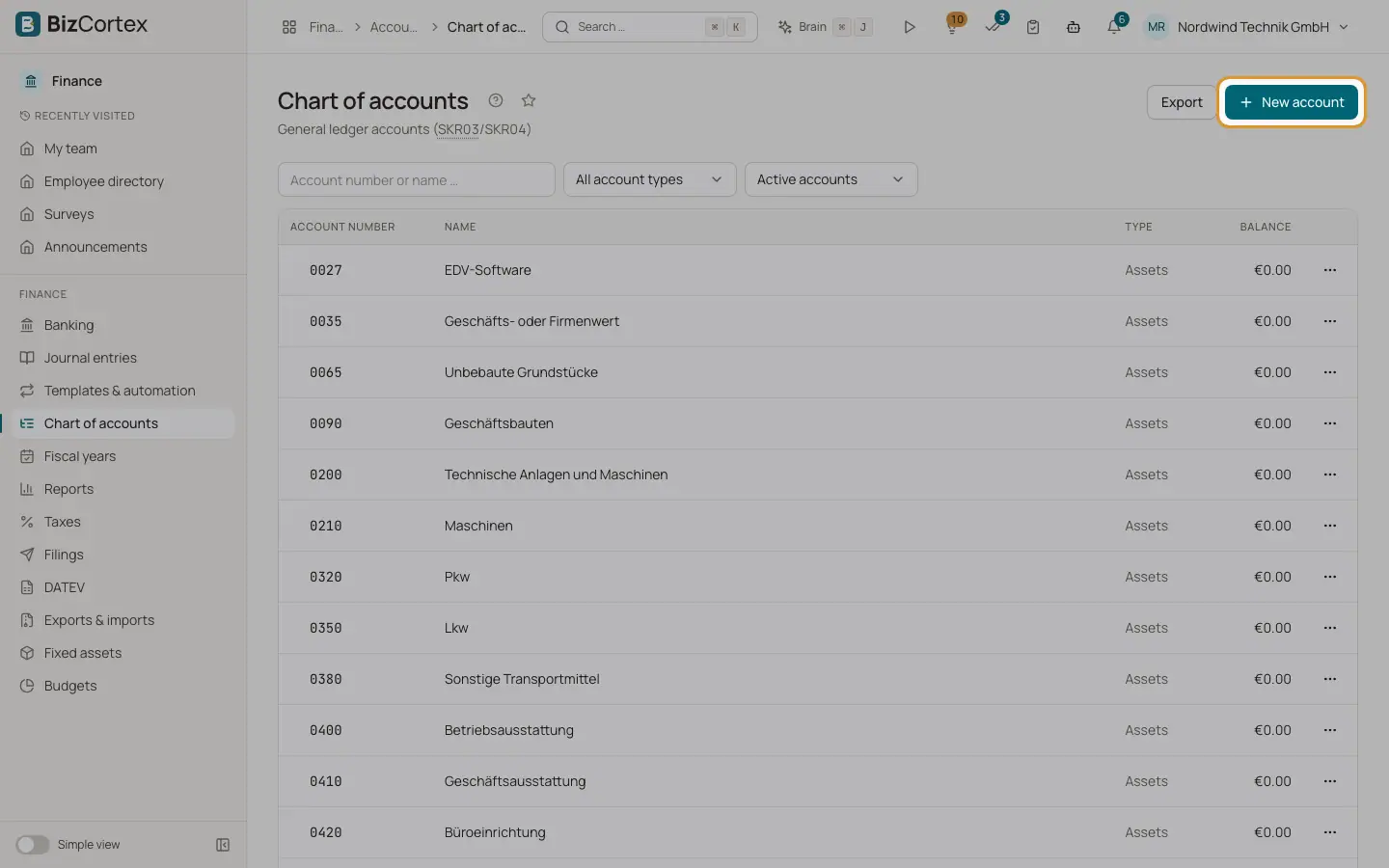
View, search, add, edit and archive the general ledger accounts of your company.
Open Finance, Chart of accounts. The chart of accounts is created for you when the company is set up, based on the country of the company. German companies get SKR03 or SKR04, Austrian companies the EKR, Swiss companies the KMU chart, French companies the PCG, Spanish companies the PGC for small companies, Swedish companies the BAS chart, Norwegian companies NS 4102 and Danish companies the Danish standard chart.
The accounts are shown as a tree. Parent accounts can be collapsed and expanded with the small arrow in front of the account number. Each row shows the account number, the name, the account type and the current balance.
Who can use this
- Owner
- Admin
- Accountant (change)
- Sales, Purchase and Viewer (read only)
Steps
1. Search an account
Type an account number or a name in the search field "Account number or name". Exact numbers and numbers that start with your input are listed first, then name matches.
2. Filter by type
Use the type filter to show only one account type: Assets, Liabilities, Equity, Income or Expenses. Choose "All account types" to show everything again.
3. Show archived accounts
The archive filter has three views: "Active accounts" (default), "Archived accounts" and "All accounts". Archived and inactive accounts are shown greyed out with a badge.
4. Add an account
Click "New account". Enter the account number (4 to 8 digits), the name, the type, an optional parent account and a description, then save. To add an account below an existing one, open the row menu of the parent and choose "Add sub account". The type of the parent is suggested.
5. Edit an account
Open the row menu and choose Edit. You can change the name and the description, and switch the account to inactive. The account number and the type cannot be changed after creation.
6. Open the account ledger
Click a row or choose "Account ledger" in the row menu to see all postings of the account with a running balance.
7. Export the chart
Click Export to download the complete chart of accounts as an Excel file.
Fields and options
- Account number
A number with 4 to 8 digits. It must be unique in your company.
- Name
The name shown in pickers, reports and exports. Up to 255 characters.
- Type
Assets, Liabilities, Equity, Income or Expenses. The type decides on which side the balance is positive and in which reports the account appears.
- Parent account
Optional. Groups the account below another account in the tree.
- Description
Optional free text.
- Active
Only shown when you edit. Inactive accounts cannot be posted to.
Tips
- Create your own sub accounts with numbers inside the range of your chart, so the reports place them in the right line automatically.
Good to know
- An account can only be archived when its balance is zero, it has no postings in open (unlocked) periods and all its sub accounts are archived first. System accounts that BizCortex needs for automatic postings cannot be archived.
- Choose "Restore" in the row menu of an archived account to make it usable again.
- Accounts with postings cannot be deleted. Deactivate or archive them instead.
Related
- Account ledger
All postings of one account in a period, with opening balance, running balance and closing balance.
- Cost centers and cost objects
Set up dimensions to analyse bookings by department, project or product.