Bank accounts
Create and manage the bank accounts of your company and see the total balance.
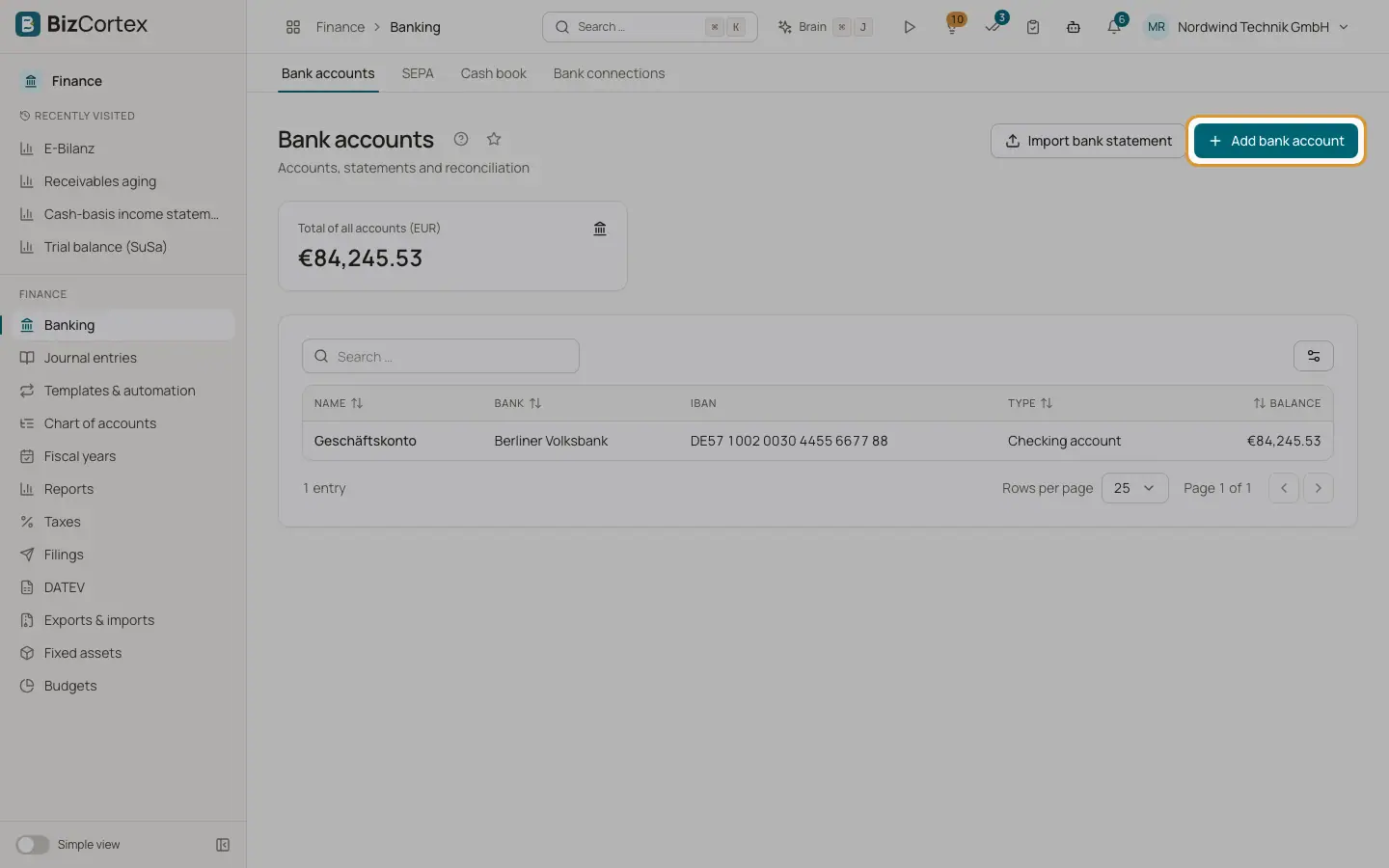
The "Bank accounts" page lists every bank account of the company with its name, bank, IBAN, type and current balance. Above the list, the card "Total of all accounts (EUR)" adds up the balances of all accounts.
Each bank account is linked to a ledger account in your chart of accounts. Every posting that banking creates (for example when you book a bank line to an expense account) uses this ledger account.
Who can use this
- Owner
- Admin
- Accountant
- Anyone with the Banking account write permission (to create or edit)
- Viewer (read only)
Steps
1. Open the list
In the Finance app, click Banking. The list opens on "Bank accounts". Click a column header such as Name, Bank, Type or Balance to sort.
2. Add a bank account
Click "Add bank account". Enter a name (for example "Business account"), the bank, the IBAN and the type. Choose the ledger account and enter the opening balance. Click save.
3. Open an account
Click a row to open the bank account page with its open lines, statistics and import buttons.
4. Import a statement from the list
Click "Import bank statement" at the top of the list to start the import wizard. You choose the bank account inside the wizard.
Fields and options
- Name
Your own name for the account. Required.
- Bank
The name of the bank. Required.
- IBAN
Optional. The IBAN is checked for a valid format and check digits. Spaces are removed and letters are converted to upper case when you save. The IBAN is needed for SEPA files and for automatic linking with bank connections.
- Type
One of "Checking account", "Savings account", "Credit card" or "Other".
- Ledger account
The asset or liability account in the general ledger, for example 1200 Bank in SKR03 or 1800 in SKR04. If you leave it empty, the bank account of your chart of accounts is used.
- Opening balance
The balance of the account when you start using BizCortex. Imported transactions are added to this balance.
- Currency
New accounts use the base currency of your company.
Tips
- Enter the IBAN even if you only import files. Bank connections link accounts with the same IBAN automatically.
Good to know
- A bank account that already has transactions cannot be deleted. Deactivate it instead with the "Active" switch in the edit dialog.
- The balance shown is the opening balance plus all imported transactions. It is not read from the bank, except for the balances that PSD2 stores on the bank link.
Related
- The bank account page
See the open lines of one bank account, edit it, fetch transactions, apply rules and open the reconciliation.
- Importing a bank statement
Upload or paste a statement file; the format is detected, duplicates are skipped and rules run automatically.