CSV import profiles
Save the column layout of your bank CSV files so every CSV import is read correctly.
Banks use very different CSV layouts. An import profile tells BizCortex exactly how to read your bank file: which character separates the columns, which encoding the file uses, how dates and amounts are written and which column holds which value.
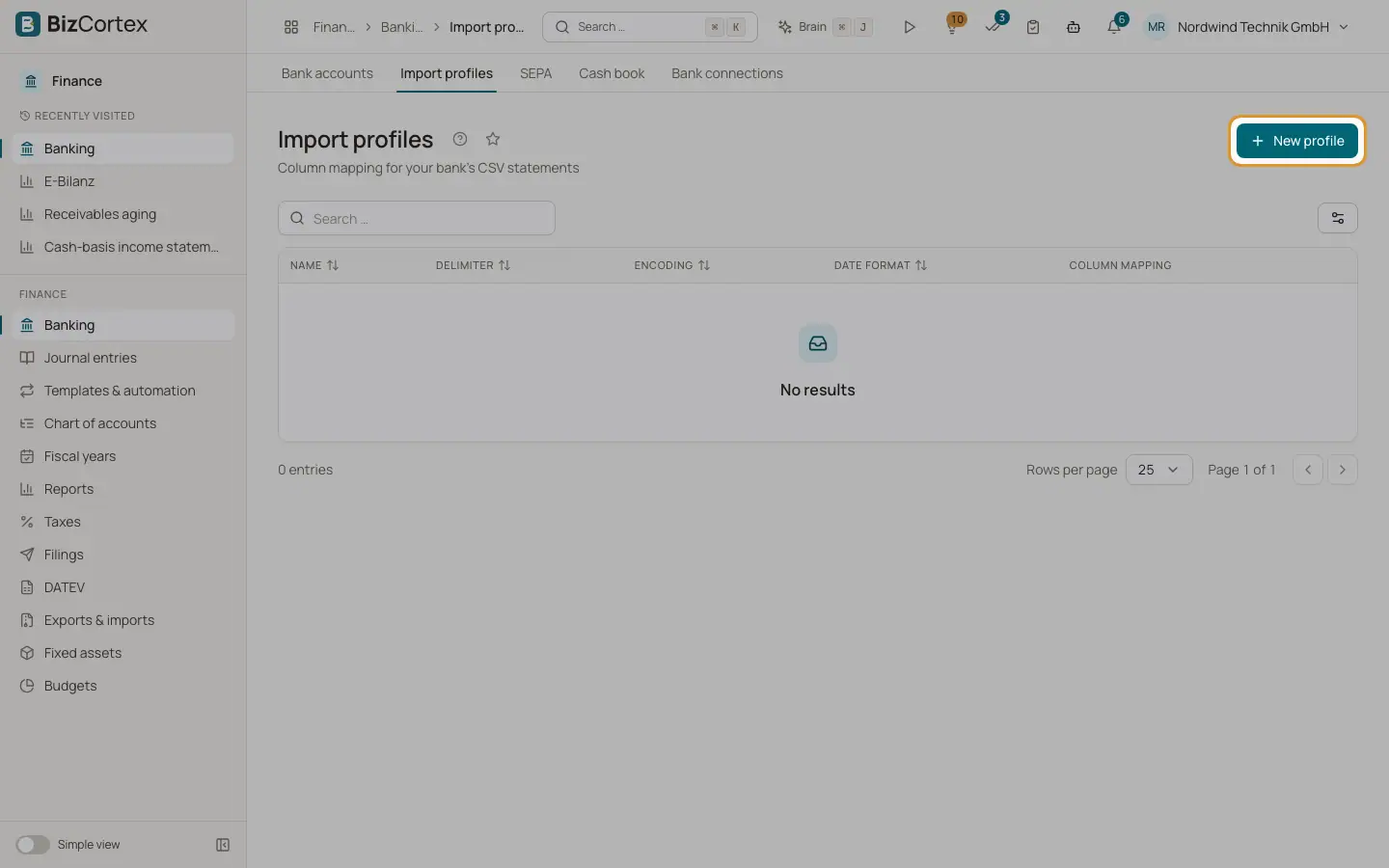
Open Banking, then "Import profiles" in the sidebar (advanced navigation). The list shows each profile with its name, delimiter, encoding, date format and column mapping.
Who can use this
- Owner
- Admin
- Accountant
- Anyone with the Banking import profile write permission (to create or edit)
Steps
1. Create a profile
Click "New profile". Enter a name, for example the name of your bank.
2. Describe the file
Choose the delimiter, the encoding, the date format, the decimal separator and the thousands separator. Enter how many rows to skip before the data starts. Switch "First row is a header" on if the file has column names.
3. Choose the amount layout
By default the profile expects one amount column with positive and negative values. Switch on "Separate debit/credit columns" if your bank writes outgoing and incoming amounts in two columns. Switch on "Invert sign" if your bank writes outgoing payments as positive numbers.
4. Map the columns
Under "Column mapping", enter for each field the column name (when the file has a header) or the column number starting at 0. Fields you do not need stay "not mapped".
5. Check with a sample
Under "Sample file for the preview", choose a statement file. It is read only in your browser and shows how the profile splits the columns.
6. Save and use
Save the profile. In the import wizard, choose it under "Import profile (CSV)".
Fields and options
- Name
Required, up to 100 characters, and unique among your profiles.
- Delimiter
Semicolon (default), comma, TAB or vertical bar.
- Encoding
utf 8 (default), cp1252, iso 8859 1 or iso 8859 15. Older German bank files often use cp1252.
- Date format
Written in strftime notation, for example %d.%m.%Y (default, for 31.12.2026) or %Y%m%d style patterns.
- Decimal separator
Comma or point.
- Thousands separator
One character, or empty.
- Rows to skip
Number of rows before the header or data, 0 to 100.
- Column mapping
Booking date, Value date, Amount, Debit (outgoing), Credit (incoming), Purpose, Reference, Counterparty and Counterparty IBAN. Booking date is required, plus either Amount or both Debit and Credit.
Good to know
- If the mapping names a column that is not in the file header, the import stops with a clear error.
Related
- Importing a bank statement
Upload or paste a statement file; the format is detected, duplicates are skipped and rules run automatically.
- Supported statement formats
Details for each import format: CSV with automatic columns, CSV with a profile, MT940, CAMT.052, CAMT.053, CAMT.054 and OFX.