Filings and connections
One list of everything BizCortex sends to tax offices, networks, banks and your tax adviser, with status, receipt and history, plus the connection settings.
Every document that leaves BizCortex for an authority or partner is a filing: a VAT return to ELSTER, a payment order to the bank, a booking batch to DATEV, a Peppol eInvoice, a VERI*FACTU record, or a file you upload yourself in a portal. Open the Finance app and click "Filings". Each filing has the same life cycle, the same history and the same archive.
The data of a filing is archived write once when it is created, so you can always prove what was sent. Receipts from the other side are archived too.
Who can use this
- Owner
- Admin
- Accountant
- Sales, Purchase and HR manager (filings of their own channels)
- Owner and Admin (connections)
Steps
1. Find a filing
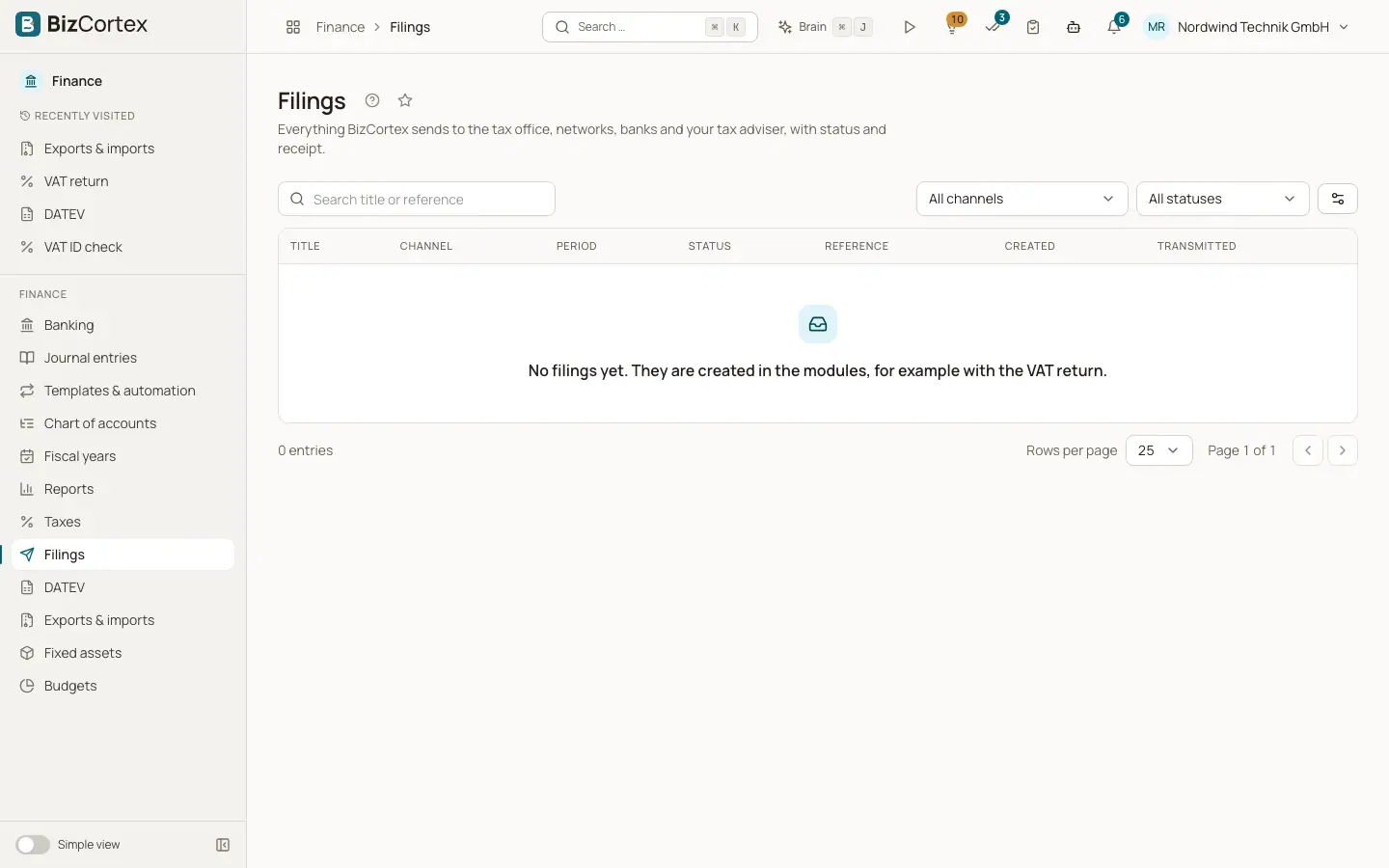
The list shows title, channel, period, status, reference, created and transmitted dates. Use "Search title or reference" and the filters "All channels" and "All statuses".
2. Open a filing
Click a row. The detail page shows channel, period, subject, counterpart reference, created, transmitted and completed times, attempts, the checksum (SHA256) of the data, and, for corrections, a link "Open the original filing".
3. Check
Click "Check". The check result lists errors and warnings with the field they concern.
4. Approve and send
Click "Approve & send". A dialog warns whether the filing goes to the test system ("Send in test mode") or live ("Send for real"). A live filing is legally binding and can afterwards only be corrected. If the check finds errors, the filing is not sent.
5. Follow the progress
While sending, the page updates by itself. The "History" shows every step.
6. Manual channels
For channels without a direct connection, the page says "This channel is manual". Download the data with "Download data", upload it in the portal of the authority, then click "Record outcome" and enter the outcome, a message, the counterpart reference and optionally the receipt file.
7. Withdraw
Click "Withdraw" to close a filing that should not be sent. You can give a reason. The archived data is kept.
8. Download
Click "Download data" for the sent file and "Download receipt" for the answer of the counterpart.
Fields and options
- Status
Draft, Checked, Queued, Sending, Transmitted, Accepted, Rejected, Error or Withdrawn. Accepted, Rejected and Withdrawn are final. Error means BizCortex could not send it; it can be sent again.
- Test mode
Taken from the connection when the filing is created. Without a connection, filings are always in test mode.
- Connections page
In the Admin app, Settings, "Connections". One card per counterpart, grouped into Tax, E invoicing, Banks, Tax adviser, Social insurance, Registers and Other. Each card shows its status (Not set up, Not checked, Connected, Error), its channels, the switches "Live operation" and "Active", and the buttons "Settings", "Check connection" and "Remove".
- Connection settings
Under "Settings" you enter the non secret settings and the "Credentials". Credentials are stored encrypted and never shown again; the dialog only shows "set" or "not set" with the options "Replace", "Keep" and "Remove".
Tips
- Available counterparts include ELSTER, the BZSt VAT ID confirmation, DATEV, FinTS and PSD2 banks, Peppol, an eInvoice mailbox, electronic signature services, VERI*FACTU (Spain), FinanzOnline (Austria), the French Plateforme Agréée, and company registers in Switzerland, Denmark, France and Norway. Only the ones for your country are shown.
- Manual channels exist for files such as sv.net reports, the Austrian UVA and ZM uploads, the Swiss VAT return, the Danish momsangivelse, Spanish forms, French CA3, CA12, DES and FEC, the Norwegian mva melding and SAF T, and Swedish moms, Periodisk sammanställning and AGI files.
- Filings that wait for an answer are checked every 15 minutes, for up to 14 days.
Good to know
- You see only filings of channels you are allowed to read, and you can send only on channels you may approve. Otherwise the page says "You lack the permission to approve filings on this channel."
- Live mode needs the connection in live mode and nothing missing on the platform side. Some counterparts have no test system; for them the live switch explains this.
- Removing a connection deletes its settings and credentials. Existing filings are kept.
Related
- ELSTER: sending German tax returns
Create German tax returns as drafts, check them with ERiC and send them to the tax office through ELSTER.
- DATEV export, import and connection
Hand bookings and receipts to your tax adviser as DATEV files or directly through the DATEV connection, and import DATEV booking batches.
- Payment files: download or send to the bank
Download the SEPA XML or send it to the bank directly with a FinTS TAN.
- VERI*FACTU (Spain)
The tamper proof register of Spanish invoicing records, its hash chain and the submission to the AEAT.