Payment files: download or send to the bank
Download the SEPA XML or send it to the bank directly with a FinTS TAN.
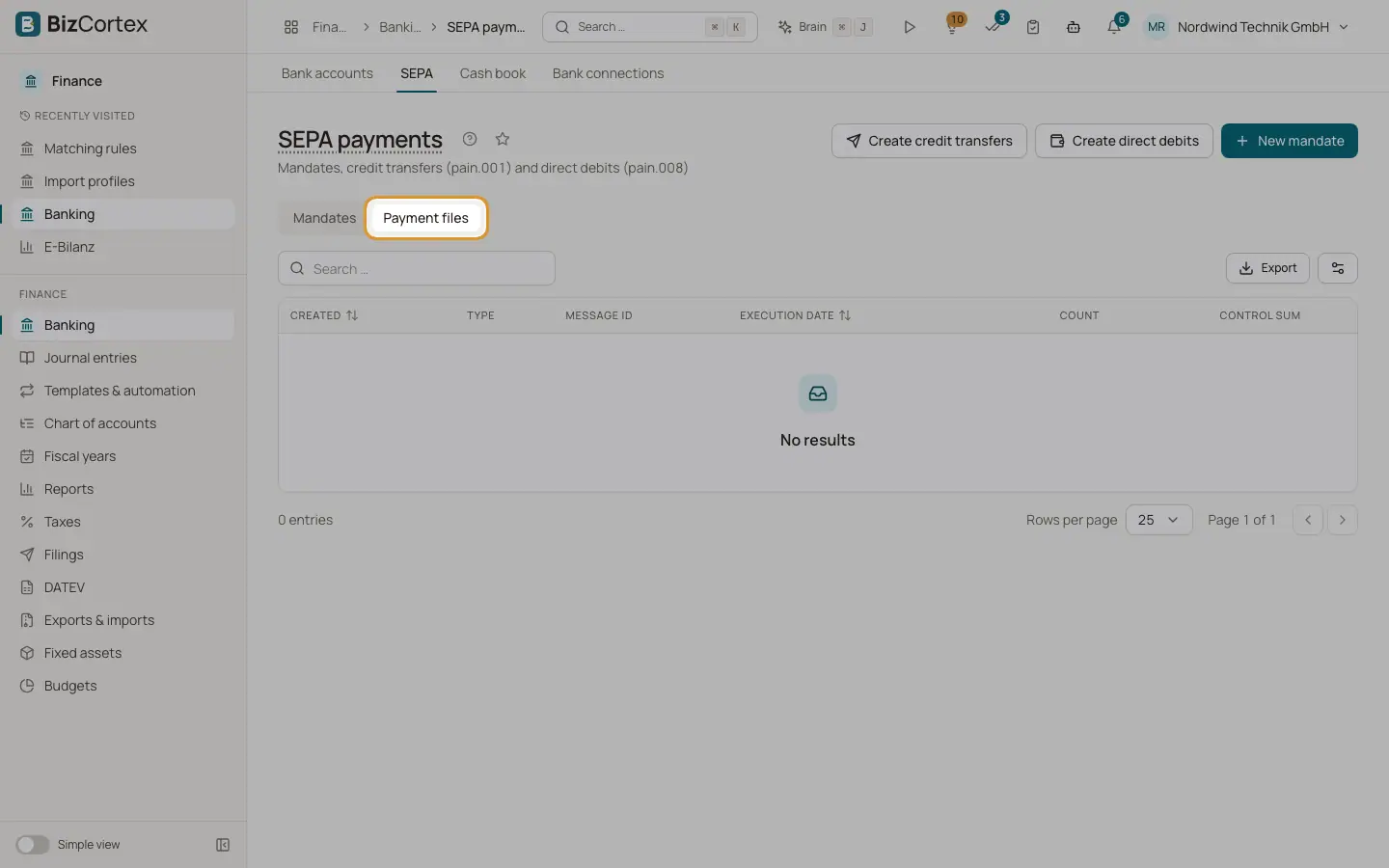
The "Payment files" tab on the SEPA page lists every credit transfer and direct debit file with creation date, type, message ID, execution date, number of payments ("Count") and "Control sum".
Who can use this
- Owner
- Admin
- Accountant
- Anyone with the Banking SEPA approve permission (to send)
Steps
1. Download
Click "Download XML" and upload the file in your online banking.
2. Send to the bank
If the bank account has a FinTS connection, click "Send to bank". BizCortex may ask for your PIN, then the bank asks for a TAN or a confirmation in your banking app.
3. Read the answer
A message tells you the result: "The bank accepted the order.", "The bank rejected the order", "The order was handed over to the bank." or, in dry run mode, "Dry run: the order was not sent to the bank."
4. Check the filing
Every send creates an entry under Filings with the file, the bank answer as receipt and the history.
Good to know
- Sending needs a FinTS connection linked to the bank account of the file. PSD2 connections are read only and cannot send payments.
- A file that was already sent (queued, sending, transmitted or accepted) cannot be sent again.
- Direct debits can only be sent if your bank supports them over FinTS.
- Some older bank setups accept only the older pain.001.001.03 version and reject newer files. In that case, download the file and contact your bank.
Related
- Connecting a bank with FinTS
Set up FinTS with bank code, server, login and PIN, then fetch accounts and transactions.
- TAN and PIN dialogs
How BizCortex asks for a TAN, a photoTAN, a chipTAN flicker code, an app confirmation or a payee check.
- Filings and connections
One list of everything BizCortex sends to tax offices, networks, banks and your tax adviser, with status, receipt and history, plus the connection settings.