Booking templates
Save frequent entries as templates and book them again in a few clicks.
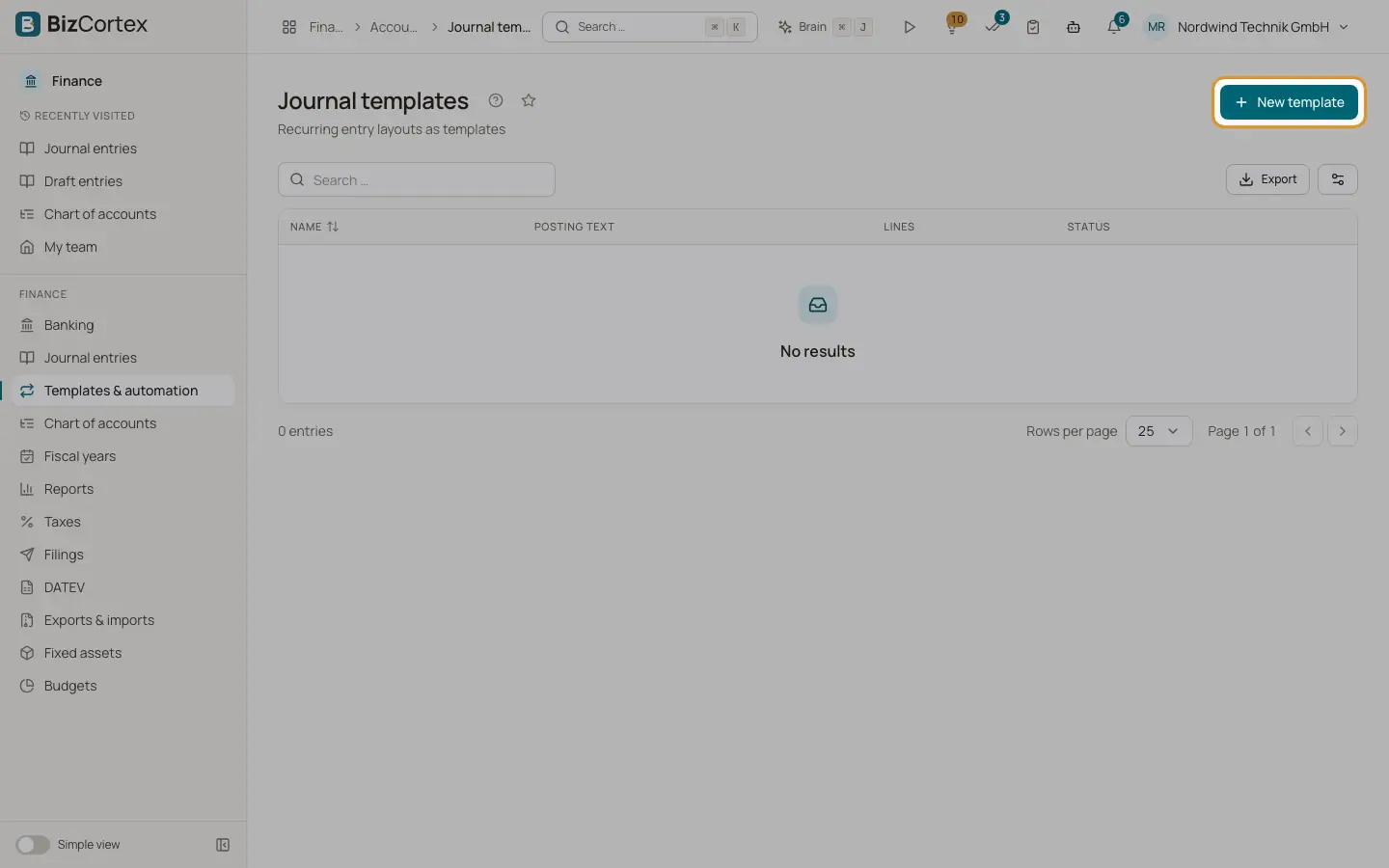
Open Finance, Templates and automation, Journal templates. A template stores the accounts and lines of an entry you book often, for example a monthly cash withdrawal or a recurring cost split. Applying a template creates a draft, or posts it directly if you want.
Who can use this
- Owner
- Admin
- Accountant
Steps
1. Create a template
Click "New template". Enter the Name, the Posting text and an optional Document no. Add at least two lines with accounts. Amounts are optional and can be filled in when you apply the template. Leave Active on and click Save.
2. Apply a template
Click a template row or choose Apply in the row menu. The dialog shows each template line with its account and side.
3. Adjust the values
Set the Posting date and the Posting text. Under "Amounts per line" enter an amount for each line you want to change. Empty fields use the amount from the template. Enter a Factor to multiply all template amounts, for example 0.5 for half.
4. Draft or post
Leave "Post immediately" off to create a draft, which opens in the editor. Switch it on to post at once; the new journal entry opens.
5. Edit or delete
Use the row menu to edit or delete a template. Deleting a template does not affect entries already created from it.
Fields and options
- Name
Required and unique in your company.
- Lines
The number of lines of the template.
- Status
Active or Inactive. Inactive templates cannot be applied; the Apply action is hidden for them.
Tips
- Combine a template with "Post immediately" for bookings that never change.
Related
- Recurring entries
Let bookings that repeat regularly, such as rent, be created automatically on their due date.
- Draft entries and the journal entry editor
Prepare entries as drafts, check them, and post them to the ledger one by one or in bulk.