VAT periods
Close a VAT period to lock the books and optionally post the VAT clearing.
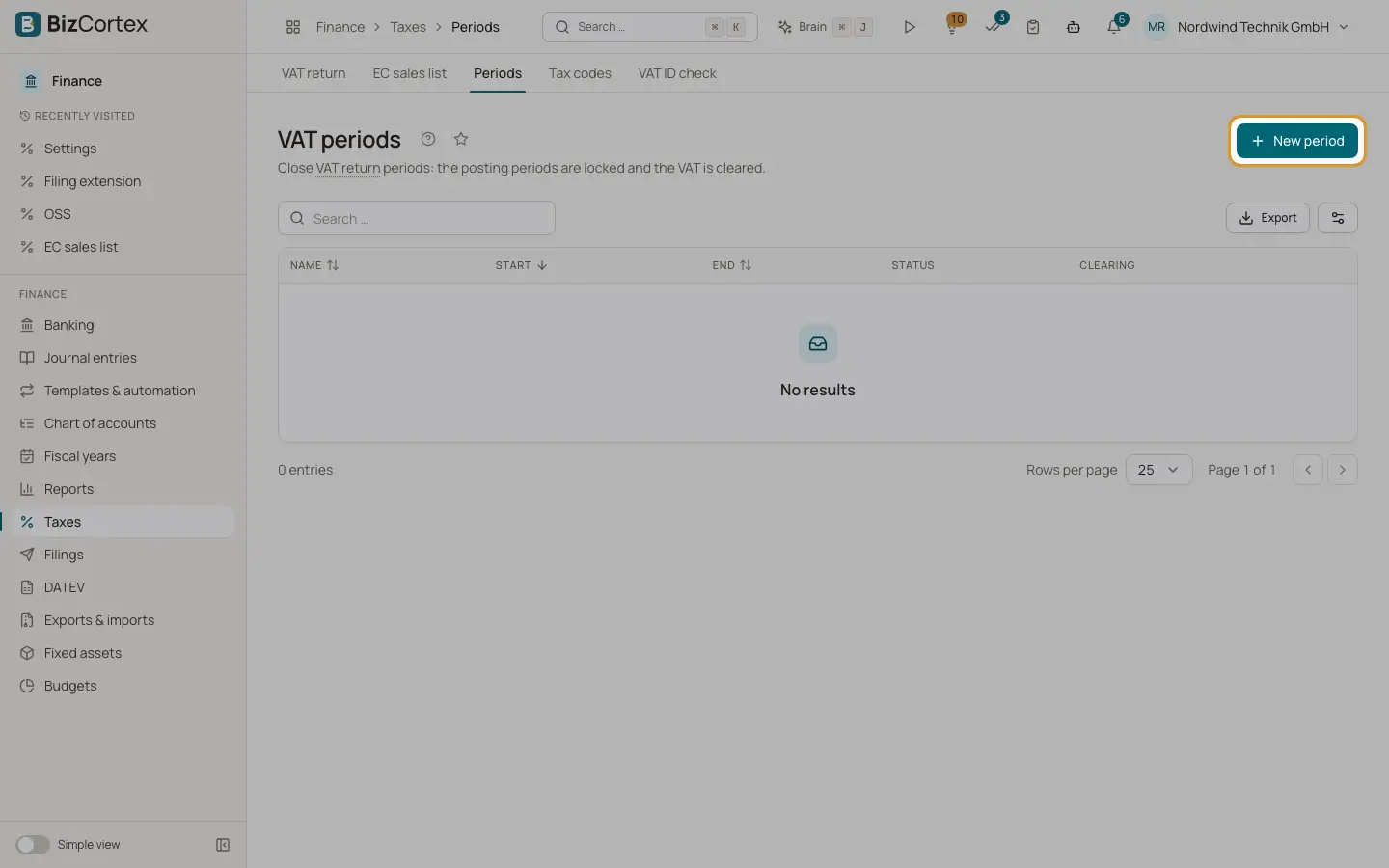
After you have filed a return, close the period so nobody changes postings in it. Open Taxes, then "Periods" (advanced navigation). The list shows name, start, end, status ("Open" or "Closed") and a link to the clearing entry.
Who can use this
- Owner
- Admin
- Accountant
- Anyone with the Tax period approve permission (to close or reopen)
Steps
1. Create a period
Click "New period". Enter a name (for example "UStVA 09/2026"), start and end. The end may not be before the start.
2. Close a period
Choose "Close" in the row menu. Decide whether to "Post VAT clearing", which moves the VAT balances of the period to the account VAT current year. Confirm. The message lists the locked accounting periods and the clearing amount.
3. Reopen
Choose "Reopen" and confirm. The overlapping accounting periods are unlocked.
Good to know
- Closing locks every accounting period that overlaps the VAT period.
- A closed period cannot be deleted.
- A period cannot be reopened when its fiscal year is closed.
- A closed period is not the same as a filed return. Whether a return was filed is visible under Filings.
Related
- German VAT return (UStVA)
Compute the monthly or quarterly UStVA from your bookings, download it and send it to ELSTER.
- Filings and connections
One list of everything BizCortex sends to tax offices, networks, banks and your tax adviser, with status, receipt and history, plus the connection settings.