Locking periods
Lock finished months so that nobody can post into them anymore.
When a month is finished, for example after the VAT return or the monthly report to your tax advisor, lock it. A locked period (Periodensperre) accepts no new postings, so your reported figures cannot change by accident.
Who can use this
- Owner
- Admin
- Accountant
Steps
1. Lock a month
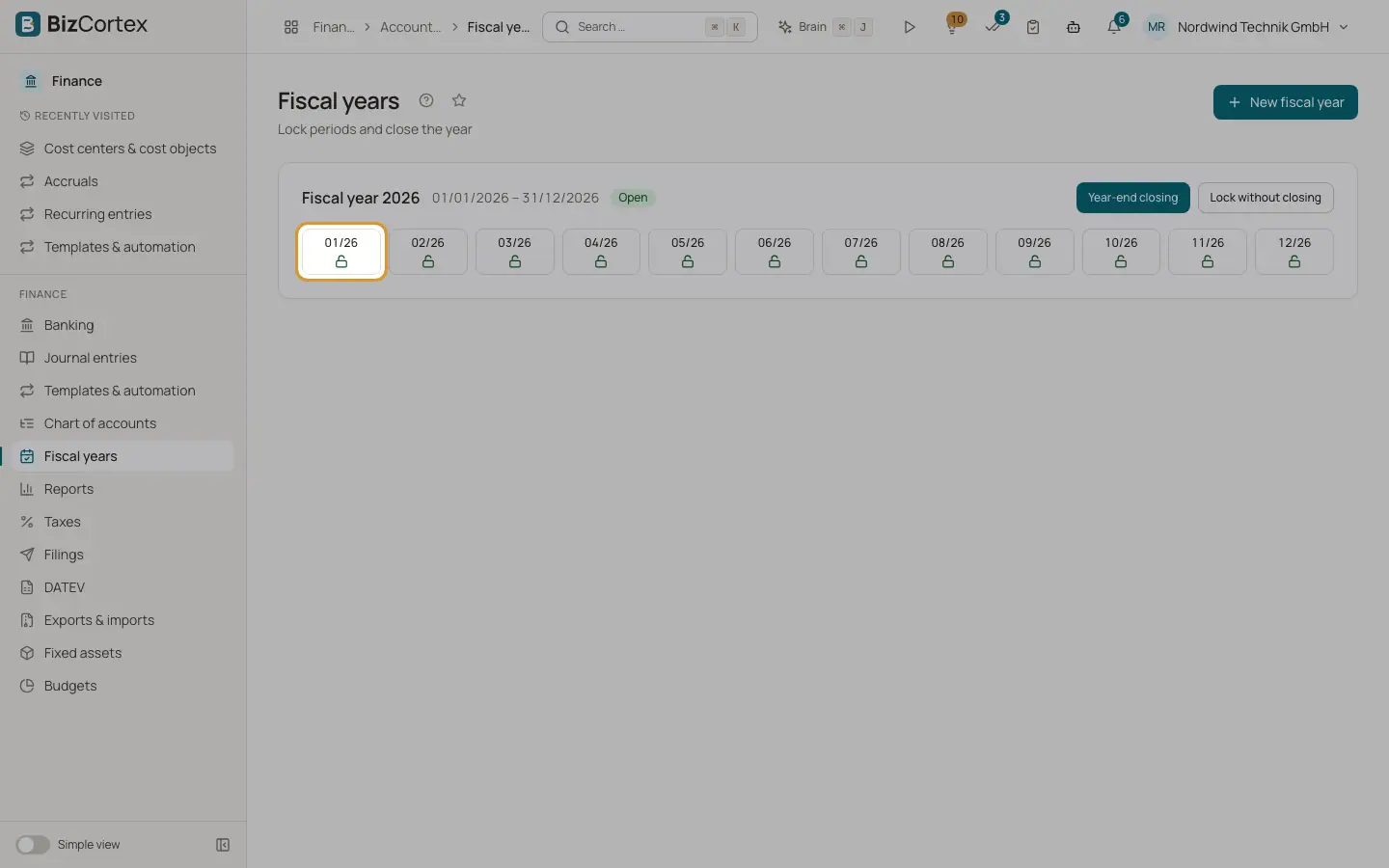
Go to Finance, Fiscal years and click the tile of the month. The tile turns grey and shows a closed lock. Hover over it to see when it was locked.
2. Unlock a month
Click a locked tile again to unlock it.
3. Lock the whole year
Click "Lock without closing" on the fiscal year card and confirm. All periods are locked and the year is marked as closed, but no closing entries are posted. Use the year end closing wizard for the full closing.
Good to know
- Periods of a closed fiscal year cannot be unlocked.
- Every lock and unlock is recorded in the audit log.
- Reopen works only for a year closed with the year end closing wizard. A year locked with "Lock without closing" has no closing entries to reverse.
Related
- Fiscal years
Create fiscal years with their monthly periods and see their status.
- Year end closing
Close the profit and loss accounts, carry the balances forward and lock the year with a guided wizard.