Draft entries and the journal entry editor
Prepare entries as drafts, check them, and post them to the ledger one by one or in bulk.
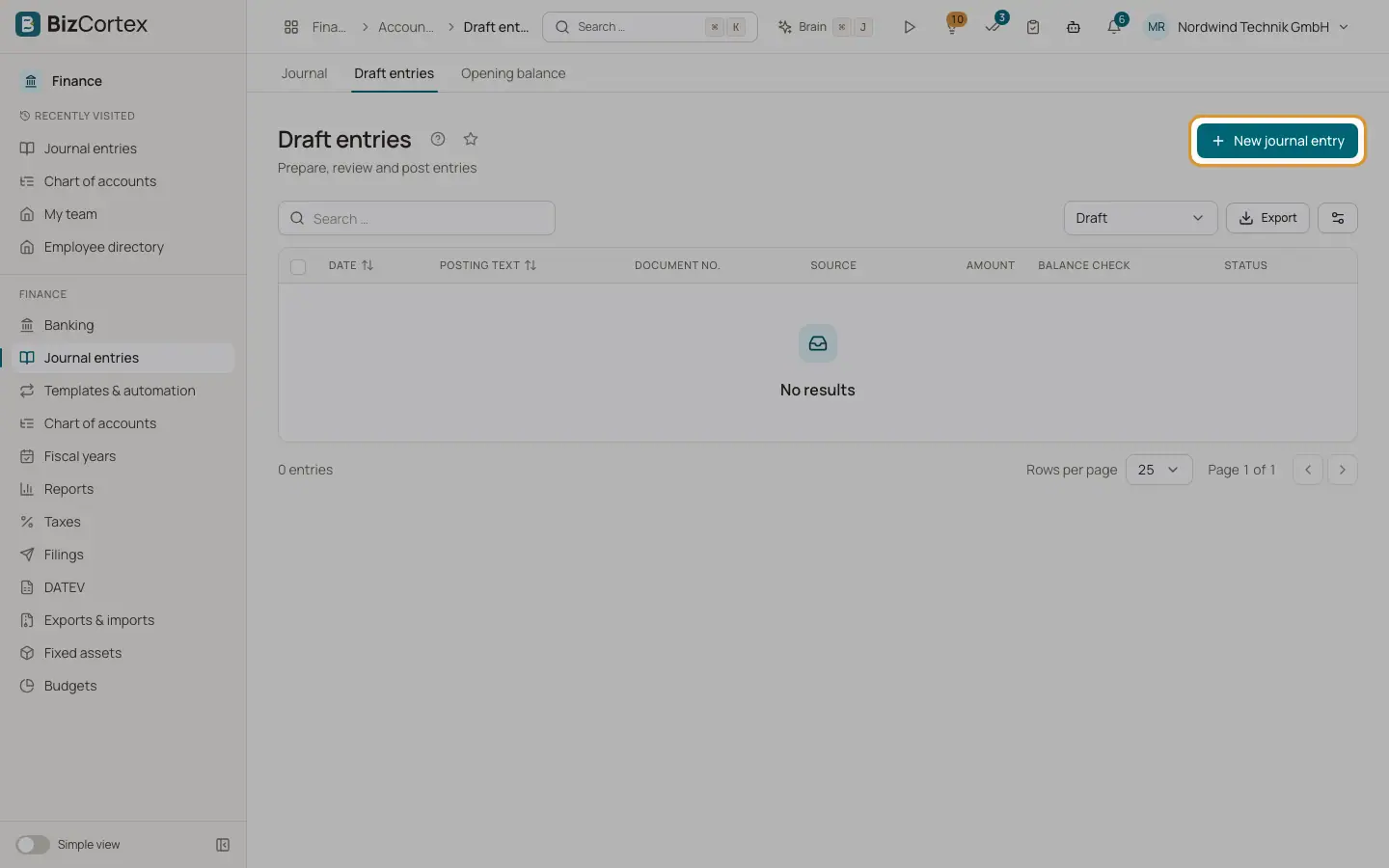
Open Finance, Journal entries, Draft entries. A draft is a journal entry that is not in the ledger yet. Drafts can still be changed or deleted, and they may be unbalanced while you work on them. Drafts are created by you, by booking templates, by recurring entries in draft mode, by the DATEV import and by the opening balance wizard.
When you post a draft, BizCortex checks it (balanced, accounts active, period open) and stores it as an immutable journal entry.
Who can use this
- Owner
- Admin
- Accountant (create and post)
- Viewer (read only)
Steps
1. Create a draft
Click "New journal entry" (or "New entry" in the journal, or the quick task "Record a booking").
2. Fill the header
Enter the Posting date, the Posting text and an optional Document no.
3. Enter the lines
Each line has an account, a Debit or a Credit amount, an optional Tax code, Cost center, Cost object and Description. A line is either debit or credit, never both. Click "Add line" for more lines and the bin icon to remove one. At least two lines are always shown.
The footer shows the debit and credit totals and a status: "Balanced", the difference, "Enter either a debit or a credit" or "Account missing".
4. Save as draft
Click "Save as draft". The draft keeps all values and can be completed later. Saving needs a date, a posting text, at least one used line, no line with both sides and no line without an account.
5. Post
Click "Post". The button is only active when the entry is balanced. BizCortex saves the draft, posts it and opens the new journal entry.
6. Post several drafts at once
In the draft list, select rows with the checkboxes and click "Post selected". Each draft is posted on its own. A message shows how many were posted and how many failed. A failed draft stays a draft so you can fix it.
7. Delete a draft
Open the row menu and choose Delete. Posted drafts cannot be deleted.
Fields and options
- Status filter
Draft (default), Posted, Discarded or All statuses.
- Source
Where the draft came from: Manual, Template, Recurring, DATEV import or Opening balance.
- Balance check
Balanced or Unbalanced, calculated from the lines.
- Amount
The debit total of the draft.
- Posting text
Required, up to 500 characters.
- Document no.
Optional, up to 100 characters.
Tips
- The Brain AI assistant can fill the entry form for you from a description. Always check the lines before you save or post.
- A posted draft shows the note "This draft has been posted." with a link "Open entry".
Good to know
- If your administrator has set up an approval workflow for journal drafts, the approval panel appears below the lines. Posting is then blocked until the draft is approved. The first click on Post starts the approval. A rejected draft stays blocked until it is submitted again. In bulk posting, drafts that wait for approval are reported as failed.
Related
- Approval workflows
Rules for who has to approve which documents, including ready made templates.
- Posting rules and immutability
The checks every posting must pass and why posted entries can never be changed.
- Booking templates
Save frequent entries as templates and book them again in a few clicks.
- Journal entries
The journal of all posted entries, and the detail view of a single entry.