Bank connections overview
Connect your bank through FinTS or PSD2 so transactions are fetched automatically.
Instead of downloading statement files, you can connect BizCortex to your bank. Open Banking, then "Bank connections". There are two ways:
FinTS (also known as HBCI with PIN and TAN) is recommended for German banks. It fetches accounts and transactions and can also send payment files to the bank with a TAN.
PSD2 (through the service GoCardless Bank Account Data) works for banks without FinTS. It is read only: it fetches accounts, balances and transactions, but cannot send payments.
Who can use this
- Owner
- Admin
- Accountant
- Viewer (read only)
Steps
1. Start the wizard
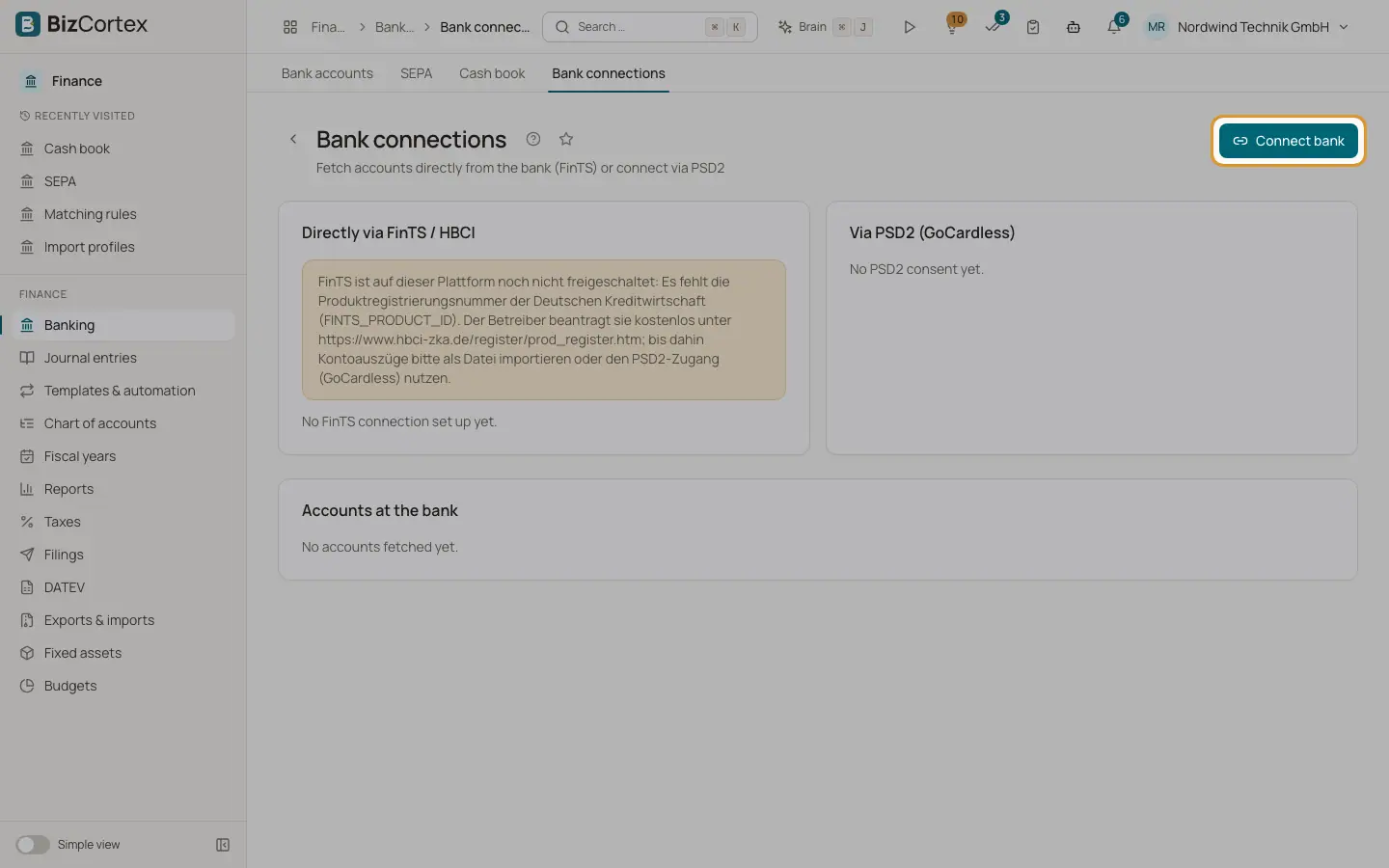
Click "Connect bank". Choose "Directly via FinTS / HBCI" or "Via PSD2 (GoCardless)".
2. Review the cards
The page shows a FinTS card (bank code, server, whether the PIN is stored, mode Live or Dry run, and the button "Fetch accounts") and a PSD2 card with every consent, its status and validity.
3. Link accounts
The section "Accounts at the bank" lists every account the bank reported. Link each one to a BizCortex bank account, or click "Create new account". Switch on "Fetch daily" for automatic fetching.
Good to know
- FinTS works only when the platform operator has registered BizCortex as a FinTS product with the German banking industry. Until then, live FinTS access is blocked and the connection explains why.
- PSD2 is available only when the platform operator has configured GoCardless access. Otherwise the wizard shows "PSD2 is not available: the platform operator has not configured GoCardless access."
- All imported transactions go through the normal statement import, so duplicates are skipped and your matching rules run.
Related
- Connecting a bank with FinTS
Set up FinTS with bank code, server, login and PIN, then fetch accounts and transactions.
- Connecting a bank with PSD2
Give read access to accounts, balances and transactions through GoCardless Bank Account Data.
- Linking accounts and daily fetching
Link bank accounts reported by the bank to BizCortex accounts and fetch new transactions every day.
- TAN and PIN dialogs
How BizCortex asks for a TAN, a photoTAN, a chipTAN flicker code, an app confirmation or a payee check.