Banking at a glance
What the Banking area contains: bank accounts, statement import, reconciliation, rules, SEPA, cash book and bank connections.
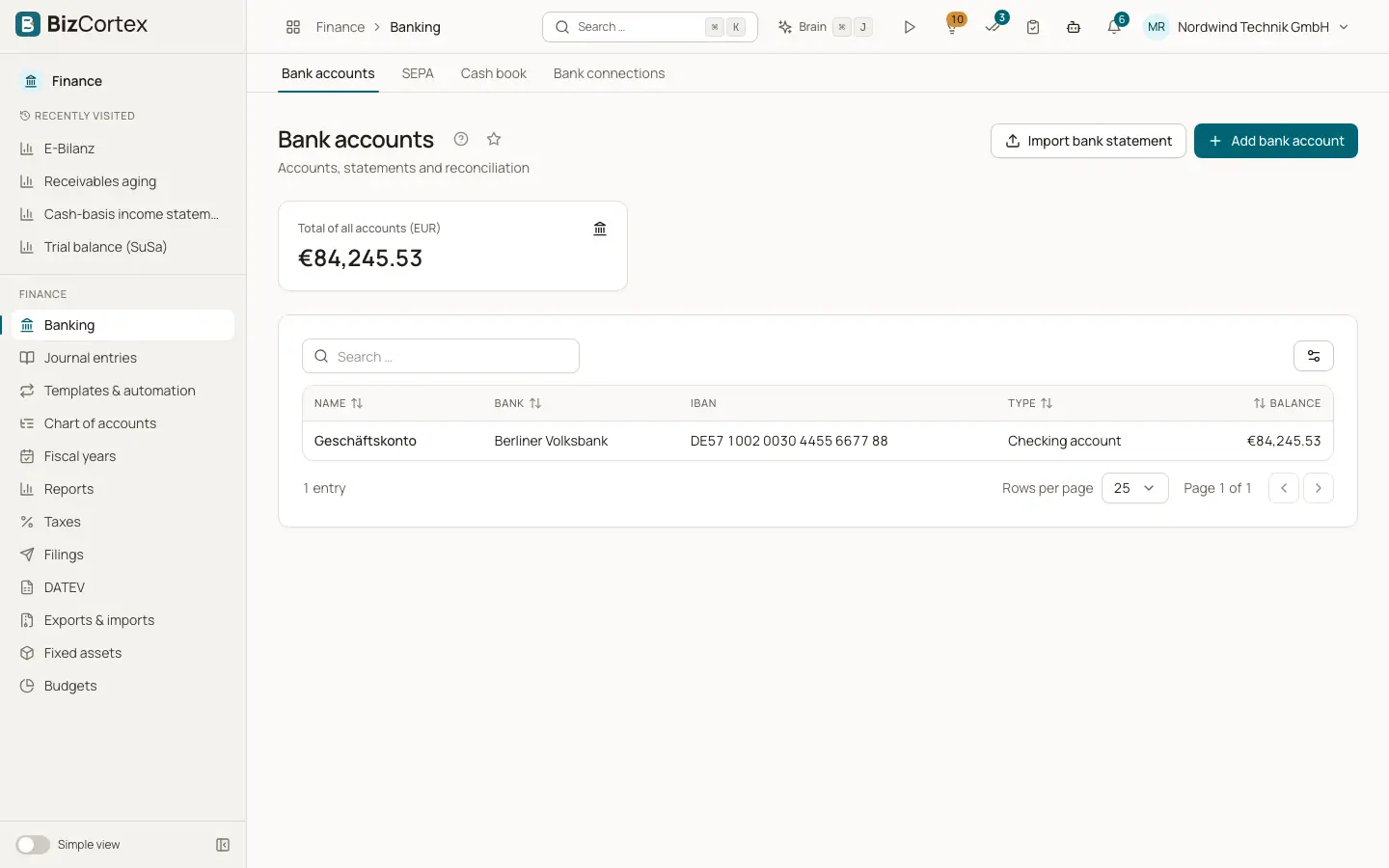
Banking lives in the Finance app. Open the app launcher, choose Finance and click Banking in the sidebar. Banking holds your bank accounts, the transactions you import or fetch from the bank, and the tools that match those transactions with invoices, bills and journal entries.
Every bank transaction ends up in one place, no matter where it came from: a file you upload, text you paste, a FinTS fetch or a PSD2 fetch. All of them run through the same import, so duplicate detection, matching rules and the audit log work the same way for every source.
Who can use this
- Owner
- Admin
- Accountant
- Viewer (read only)
Steps
1. Bank accounts
The first sidebar item, "Bank accounts", lists your accounts with their balance. Click an account to see its open lines and to import statements.
2. Matching rules
"Matching rules" assigns recurring transactions (rent, fees, subscriptions) to a counter account automatically. This item is shown in the advanced navigation.
3. Import profiles
"Import profiles" describes the CSV layout of your bank so that CSV statements are read correctly. This item is shown in the advanced navigation.
4. SEPA
"SEPA" manages direct debit mandates and creates payment files: credit transfers (pain.001) and direct debits (pain.008).
5. Cash book
"Cash book" records cash income and expenses in cash registers and closes each day, as the German GoBD rules require.
6. Bank connections
"Bank connections" links your bank directly through FinTS or PSD2 so that new transactions are fetched automatically.
Tips
- The Banking sidebar entry also offers two quick tasks: "Match bank transactions" and "Connect a bank account".
- Users with only read permissions see all pages but no buttons that change data.
Related
- Bank accounts
Create and manage the bank accounts of your company and see the total balance.
- Importing a bank statement
Upload or paste a statement file; the format is detected, duplicates are skipped and rules run automatically.
- Reconciling bank transactions
Match each bank line with an invoice, a bill, a journal entry or an account, using scored suggestions.
- Bank connections overview
Connect your bank through FinTS or PSD2 so transactions are fetched automatically.